Having reliable internet access while on the move is essential in today’s connected world. Whether you’re working remotely from a coffee shop, traveling through airports, or exploring new places, turning your smartphone into a portable Wi-Fi hotspot allows you to stay connected on all your devices without relying on public or unreliable networks. This guide provides a comprehensive overview of how to set up and use your phone as a hotspot, ensuring you can access fast, secure internet wherever you go.
Many mobile carriers offer plans with hotspot capabilities, but understanding how to activate and optimize these features can sometimes be confusing. From configuring your device to finding the right plan, this walkthrough aims to simplify the process so you can confidently share your cellular data connection with other devices. Additionally, you’ll learn about the differences between popular operating systems, how to troubleshoot common issues, and tips for managing your data usage efficiently. Leveraging your phone as a portable hotspot is an invaluable skill that keeps you connected when traditional internet options aren’t available.
Our Video on How to Set up a Mobile Hotspot
Prefer visual instructions? Check out our detailed tutorial video below that walks you through each step of configuring a mobile hotspot on your device. Watching this can help clarify the process and ensure you’re set up quickly and correctly.
Watch this video to discover how to establish a mobile hotspot connection on your phone.
What Is a Hotspot?
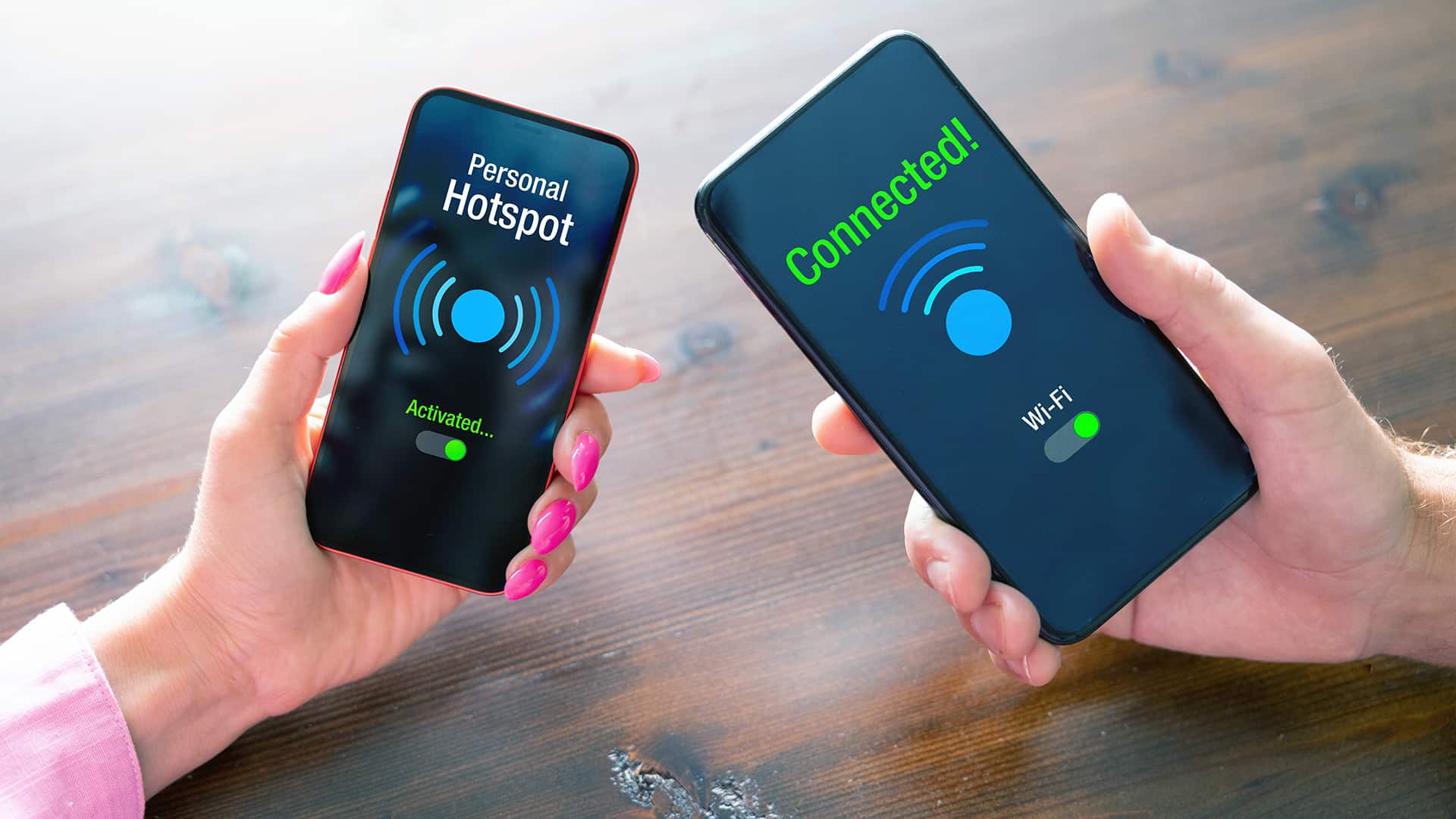
A hotspot is a feature that transforms your smartphone into a portable internet access point, allowing other devices to connect to the internet through your cellular data connection. These hotspots are created in any location where you have cellular service, turning your device into a Wi-Fi access point. Whether you’re using an iPhone or an Android device, enabling a hotspot involves configuring a network name (SSID) and password, which other devices can then connect to securely. Since hotspots consume significant amounts of mobile data and drain battery life, it’s important to select an appropriate data plan and keep a power bank or charger nearby to maintain your hotspot’s operation.
Using a hotspot is especially advantageous when traveling or in areas where fixed broadband services are unavailable or unreliable. It ensures that your email, streaming, and work applications remain accessible, making it a vital tool for mobile professionals and travelers alike.
What Are the Requirements to Set Up a Hotspot?
Before you can start sharing your cellular connection, verify that your phone plan includes hotspot data, as not all plans do by default. When choosing a service provider, look for plans that explicitly mention hotspot or tethering features. Modern smartphones—whether iOS or Android—are capable of creating hotspots, provided they support the necessary hardware and software.
If you wish to access 5G internet through your hotspot, ensure your device supports 5G connectivity. It’s also crucial to check your data allowance because using a hotspot can quickly consume your mobile data, leading to potential overage charges or throttling. For detailed information on selecting a suitable plan, you can visit this resource to find the best options for your needs.
How Do You Set Up a Hotspot on an iPhone or iPad?
Apple devices make activating a personal hotspot straightforward. Jordana Klein, a BroadbandNow author, demonstrates how easy it is to connect to a hotspot on iOS devices:
- Open the Settings app on your iPhone or iPad.
- Tap on Personal Hotspot.
- Find the Allow Others to Join option and toggle it on. This enables your device to broadcast its hotspot.
- Tap Wi-Fi Password to set a secure password for your network.
- On the device you want to connect, search for your hotspot name, select it, and enter the password you just set.
Once connected, your device can access the internet through your phone’s cellular data. Remember, managing your data plan and battery life is vital when using your device as a hotspot.
How Do You Set Up a Hotspot on Android?
Connecting your Android device to a hotspot varies slightly depending on the manufacturer and Android version. For example, common steps for Google Pixel and Samsung Galaxy devices are outlined below.
Interesting:
How to Set Up a Hotspot on Google Pixel Phones
Andrew Cole, an editor, guides through the process on his Google Pixel 6 Pro:
- Go to Settings.
- Tap Network & internet.
- Select Hotspot & tethering.
- Toggle the Wi-Fi hotspot switch to activate it. Your hotspot’s name (SSID) will appear on the screen.
- Tap on the hotspot name to customize the network name, password, or security settings.
- Connect your other devices by selecting your hotspot and entering the password.
How to Set Up a Hotspot on Samsung Phones
Vivian Nguyen demonstrates the process on a Samsung Galaxy S23+:
- Open Settings.
- Tap Connections.
- Select Mobile Hotspot and Tethering.
- Enable Mobile Hotspot by toggling the switch.
- Set a network name and password for your hotspot.
- On the device you want to connect, locate your hotspot network, select it, and enter the password or scan the QR code for quick access.
Other Android devices like Motorola and Nokia follow similar steps but may differ slightly based on their interface and Android version. For more detailed instructions, you can visit this beginner’s guide for additional setup tips.
Which Cellular Providers Offer Phone Plans With Hotspots?
Most major carriers include some form of hotspot data in their plans, but specifics vary widely. Some providers bundle hotspot usage into their unlimited plans, while others offer it as an additional feature. Carefully reviewing your provider’s plan options ensures you select the right one for your data needs.
AT&T
AT&T’s flagship plan, the Unlimited Premium, includes 50 GB of hotspot data per month. This generous allowance allows for streaming, browsing, and even light work activities on multiple devices without worry.
Verizon
Verizon’s Unlimited Ultimate plan offers 60 GB of hotspot data per line each month, along with access to 5G internet. For heavy users, Verizon provides the option to purchase an extra 100 GB of hotspot data, perfect for streaming or large downloads on the go.
T-Mobile
T-Mobile’s Go5G Next plan includes 50 GB of hotspot data in addition to unlimited talk, text, and data. While technically unlimited, hotspot speeds are throttled after exceeding the 50 GB cap, making it suitable for moderate use.
How Do You Connect to a Hotspot?
Connecting to a hotspot is identical to linking your device to any Wi-Fi network. Simply search for available networks, select your hotspot’s SSID, and enter the password. Once connected, your device will have internet access through your phone’s cellular connection.
How Do You Disconnect From a Hotspot?
To disconnect, navigate to your device’s Wi-Fi settings, locate your hotspot network, and manually disconnect or toggle off the connection. Some devices may also allow you to manage connected users or set time limits for security and data management. Properly disconnecting ensures your hotspot isn’t unnecessarily draining your battery or data.
For additional guidance on optimizing your internet setup or managing your data, explore resources like this comprehensive guide to importing and managing game data on Steam, which can help you streamline digital content management when using portable internet solutions.