Sending images or links on Discord can sometimes reveal spoilers unintentionally, especially if you want to hide sensitive content until someone chooses to view it. Fortunately, Discord’s spoiler features allow you to mask images and embedded links easily on your mobile device. This guide will walk you through simple methods to spoiler images and link previews, ensuring your content stays hidden until desired.
When sharing potentially spoiler-y images or links, it’s important to know how to properly mark them so that they don’t spoil the surprise for others. Whether you’re using the mobile app on iOS or Android, these techniques help maintain control over what your audience sees. Additionally, understanding how to manage embed previews and spoiler tags can prevent accidental exposure of hidden content, making your interactions more thoughtful and engaging.
—
Things You Should Know Before Spoiling Content on Discord Mobile
- To mark an image as a spoiler, upload the photo, then tap or long-press it to access options. From there, select “Mark as spoiler” to blur the image automatically.
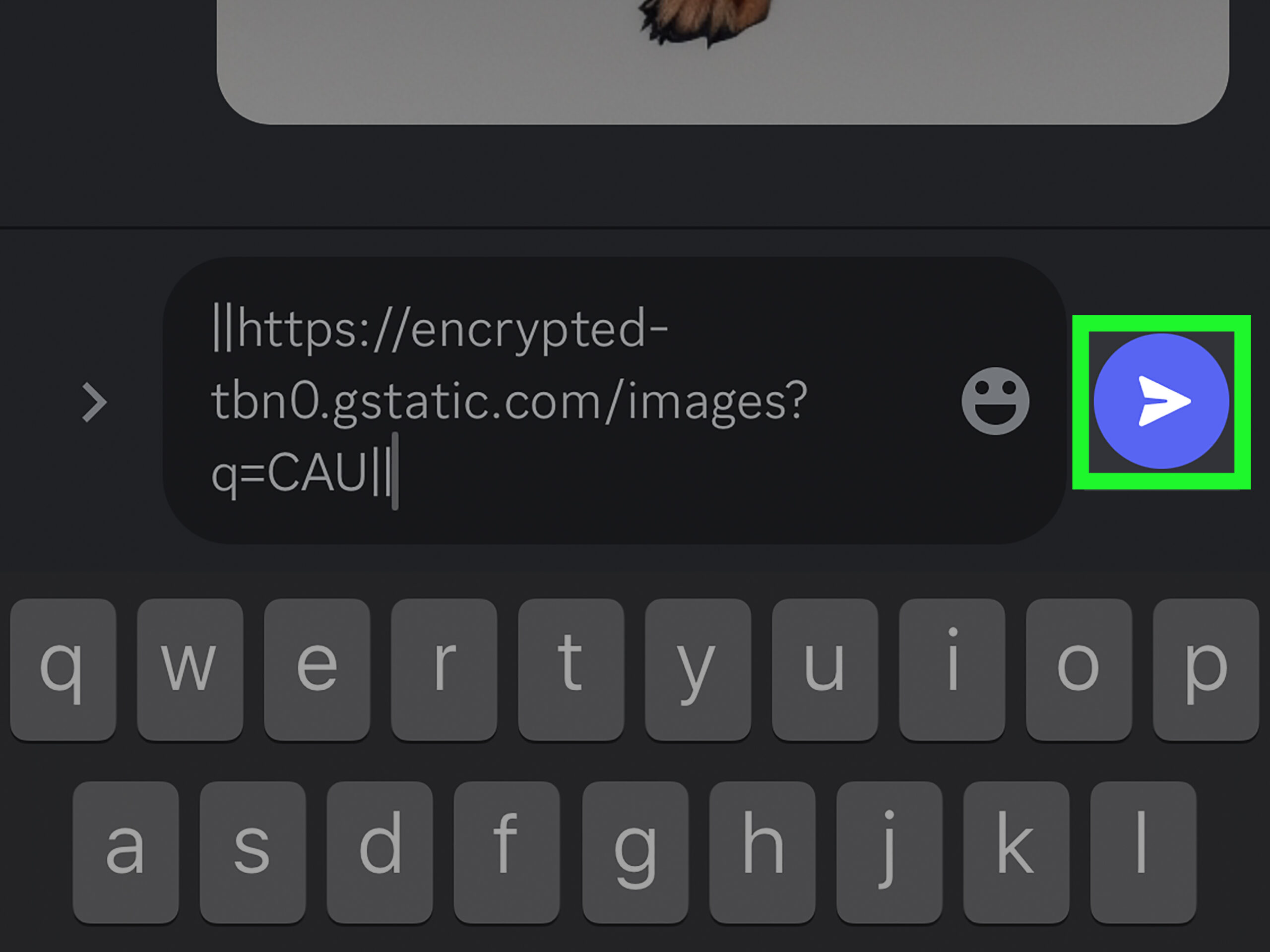
- Spoiling a link with an image embed involves enclosing the URL within double vertical bars (`||`). This will hide the preview and embed, displaying it as a spoiler.
- For completely removing the embed preview from a link, you can enclose the URL within “ brackets. This prevents Discord from generating a preview, giving you more control over what is displayed.
—
Interesting:
- Mastering spoiler text and images on discord for android users
- How to access and manage sqlite databases on android devices
- How to deploy and test rpg maker mv projects on ios devices
- How to run a steam game as an administrator on windows 11 for seamless gaming
- How to easily save and play steam games on an external hard drive
Method 1: Spoilering an Image Before Sending
Step-by-Step Guide
- Tap the + icon next to the message input box. This opens your device’s gallery or file browser, allowing you to select an image you want to share.
- Choose the desired photo. You can tap or long-press to select it from your gallery.
- Preview the image before sending. Once selected, you’ll see a preview of the image above the message box.
- Tap on the image preview. This opens a menu with options for the image.
- Select “Mark as spoiler.” This option is usually located between the “Remix” and “Remove file” buttons. You might need to scroll slightly to find it.
- Close the menu. Tap outside or swipe down to exit the options. The image will now appear grayed out with a white eye icon overlay, indicating it is spoilered.
- Send your message. Tap the blue send button. Your image will be posted with a spoiler tag, and viewers will need to click to reveal it.
Additional Tips
- If you upload multiple images, remember to mark each one individually as a spoiler to prevent accidental exposure.
- Spoilered images cannot be unmarked after sending; you must delete and re-upload if you want to change their status.
—
Method 2: Spoiling a Link Embed on Discord Mobile
How to Spoil a Link or Embedded Image
- Type `||` before and after the URL. When you include a link in your message, surround it with double vertical bars. For example: `||https://example.com/image.jpg||`. This will generate a spoilered link that hides the preview image until clicked.
- Paste the link. After typing the opening `||`, insert your URL, then close with another `||`.
- Send the message. The link will appear as a spoiler, with the preview blurred out, preventing accidental spoilers.
- Optional: To completely disable the embed preview, enclose the URL within “ brackets. For example: “. This removes the preview altogether.
Additional Tips
- Using spoiler tags for links is helpful when sharing content that might contain spoilers or sensitive information.
- Be aware that some servers or channels may have restrictions or custom settings regarding spoiler tags, so check local rules if unsure.
—
Additional Resources and Considerations
For users interested in customizing their Discord experience further, enabling borderless windowed mode can enhance gameplay or multitasking. Check out this guide for detailed instructions. Additionally, if you’re concerned about downloads, understanding whether closing Steam halts ongoing downloads can be useful; read more about this at this support article. Lastly, if you’re reinstalling Windows and want to keep your game data safe, explore this guide to prevent data loss.
By mastering these spoiler techniques, you can ensure that your shared images and links on Discord are revealed only when intended, making your interactions more controlled and enjoyable for everyone involved.