


Encountering the error message “Failed to create D3D9 device” can be frustrating for gamers trying to enjoy their favorite titles on Windows 10. This issue often appears when launching certain games, especially if the game’s resolution settings are incompatible with your monitor, or due to other system-related problems. Thankfully, several effective solutions exist that can help you resolve this error and get back to gaming smoothly. From adjusting game and system settings to updating drivers and verifying files, these methods address common causes of the problem and are suitable for users of all technical levels.
—
Method 1: Adjust Your Game Resolution Settings
One of the most frequent causes of the D3D9 device creation failure is resolution mismatch. Before attempting more complex fixes, ensure that your game’s resolution aligns with your monitor’s native resolution.
Step 1: Check your current system resolution by right-clicking anywhere on your desktop and selecting Display settings. Here, you will see the current resolution listed under Display resolution. Note this value.
Step 2: Launch your game via Steam or other platforms. Right-click on the game in your library, select Properties, then navigate to the General tab, and click on LAUNCH OPTIONS.
Step 3: Enter the resolution parameters that match your desktop resolution. For example, if your screen resolution is 1366×768, input: `-w 1366 -h 768`. Adjust these values to match your actual resolution.
Step 4: Close the settings window and try launching the game again. If the issue persists, switching to windowed mode can sometimes help. In the launch options, type `-windowed` and relaunch the game.
For detailed guidance, you can learn about game development and resolution management here.
—
Method 2: Manually Modify Game Configuration Files
If changing resolution via launch options doesn’t work, editing the game’s configuration files directly can resolve the issue.
Step 1: Open File Explorer (Win + E) and navigate to the folder where your game is installed. Typical paths might include:
`C:Program Files (x86)SteamsteamappscommonYourGamecfg`
Step 2: Locate the configuration file, often named Machineoptions.ini or similar. Right-click and select Open with > Notepad.
Step 3: Look for lines specifying resolution, usually starting with `ResX` and `ResY`. Remove any semicolons (`;`) preceding these lines to uncomment them, ensuring they are active.
Step 4: Set the resolution values to match your monitor. For example:
“`ini
ResX=1366
ResY=768
“`
Save the file and restart your PC to apply changes. This adjustment can help the game initialize properly without encountering the D3D9 device error. For more insights on game configuration, visit this resource.
—
Method 3: Reinstall or Update DirectX Runtimes
Corrupted or outdated DirectX files can prevent 3D graphics from initializing correctly. Reinstalling the latest DirectX Runtime can often fix this.
Step 1: Visit the official Microsoft download page for DirectX End-User Runtime: here.
Step 2: Download the installer and run it, following on-screen instructions to complete the installation.
Updating DirectX ensures your system has the necessary components to support modern graphics, reducing the likelihood of the creation failure. For further details, refer to this guide.
—
Method 4: Verify Integrity of Game Files via Steam
Corrupted or missing game files can also cause the D3D9 device creation failure. Verifying the integrity of game files helps detect and repair such issues.
Step 1: Open Steam and go to your Library.
Step 2: Right-click on the problematic game and select Properties.
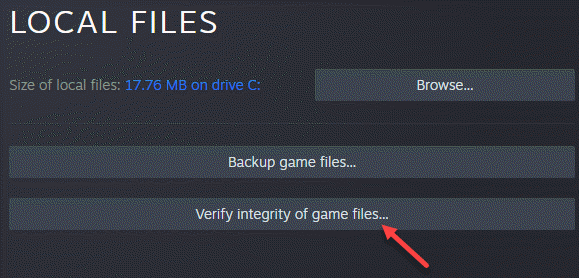
Step 3: Navigate to Local Files and click on Verify Integrity of Game Files.
This process scans for corrupted files and replaces them, ensuring your game runs with a complete and uncorrupted installation. If third-party antivirus software interferes, this verification becomes even more crucial. For additional troubleshooting, consider reading about the importance of game file integrity.
—
Method 5: Update or Reinstall Your Graphics Driver
Outdated or corrupt graphics drivers are common culprits behind display-related errors. Keeping your drivers current can resolve compatibility issues.
Step 1: Open the Run dialog (Win + R), type `devmgmt.msc`, and press Enter to launch Device Manager.
Step 2: Expand Display adapters, right-click your graphics card, and select Update driver.
Step 3: Choose Search automatically for drivers to let Windows find the latest available driver. Alternatively, visit your GPU manufacturer’s website (NVIDIA, AMD, Intel) to download and install drivers manually.
Step 4: Follow on-screen prompts to complete the installation and restart your PC.
Proper driver updates can significantly improve compatibility and resolve the “Failed to create D3D9 device” error. For more detailed instructions, see this guide.
—
Method 6: Run the Game in Compatibility Mode
Older games or those not fully compatible with Windows 10 may need to be run in compatibility mode.
Step 1: In File Explorer, locate the game’s executable (`.exe`) file. Right-click and select Properties.
Step 2: Switch to the Compatibility tab. Click Run compatibility troubleshooter or check Run this program in compatibility mode for, then select an earlier version of Windows (e.g., Windows 7).
Step 3: Click Apply and OK, then launch the game again.
This method can bypass compatibility issues that lead to device creation failures, especially for older titles.
—
Method 7: Enable All Services in System Configuration
Some background services related to graphics and system performance may need to be enabled.
Step 1: Open Run (Win + R), type `msconfig`, and press Enter.
Step 2: Go to the Services tab. Check the boxes next to all AMD or nVidia services, or click Enable All if unsure.
Step 3: Click Apply and restart your PC.
This ensures all necessary services are running, which can help resolve hardware initialization issues. If issues persist, updating Windows itself can be beneficial, as sometimes system updates fix underlying compatibility problems.
—
If none of these solutions work, consider updating your Windows to the latest version or using a registry cleaner to repair potential registry issues that might interfere with graphics device creation.
Further Reading:
- Learn more about the influence of different development styles on game design and graphics here.