Transferring and managing game data on Steam can seem complex, but with the right steps, you can ensure your saves and game files are properly imported and accessible across devices. Whether you’re moving saves, adding non-Steam games, or linking accounts, understanding the process helps optimize your gaming experience. This guide walks you through common tasks like importing save files, transferring games between PCs, and connecting your Xbox account to Steam.
—
How to Upload and Import Save Data into Steam
To upload your game save files to Steam, start by locating your save file—often found in your game’s folder outside of Steam. Once found, copy the save file and paste it into the appropriate folder within your Steam installation directory, typically under `Steamuserdata[Your User ID]`. Ensure the save files are correctly placed to enable easy access and synchronization.
For cloud-based save management, navigate to Steam > Settings > Cloud and verify that Enable Steam Cloud is turned on. This setting allows your save progress to sync across devices seamlessly. You can also right-click on a game in your library, select Properties, then under the General tab, make sure Keep game saves in Steam Cloud is enabled. This ensures your progress is stored safely online and accessible whenever needed.
How to Add Non-Steam Games to Your Library
Adding a game that isn’t officially on Steam is straightforward:
- Open Steam and click on the Games menu.
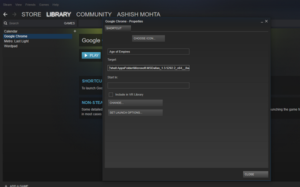
- Select Add a Non-Steam Game to My Library.
- Browse your computer to locate the game’s executable (.exe) file.
- Select the game and click Add Selected Programs.
If your game isn’t listed, click Browse to locate it manually. Once added, the game will appear in your Steam library, allowing you to launch it through Steam’s interface. When you switch to Steam’s gaming mode, the game will also show up on your Steam Deck library, making access easier across devices.
Transferring Save Data from Xbox Game Pass to Steam
Transferring your save data from Xbox Game Pass to Steam is possible, provided the game supports save file compatibility. Typically, save files are stored in specific folders, and you can manually copy them into Steam’s save directory, often located in your Documents or AppData folders. If the game uses the same save location for both platforms, it may automatically recognize your progress.
Alternatively, some games support cross-platform cloud saves, allowing you to sync progress across Xbox and Steam if linked correctly. To explore more about how game development companies manage their in-game economies, visit this resource on game office counts.
How to Allocate Game Files to Steam
Creating a second library folder in Steam allows you to organize games across multiple drives:
- Open Steam and go to Settings.
- Click on Downloads, then select Steam Library Folders.
- Click the + button at the top.
- Choose the drive where you want to create a new library.
This setup helps you manage disk space efficiently, especially when moving large games. When you install a game, select the appropriate folder, and Steam will handle the rest. For moving existing games between drives, copying the game folder from the `steamappscommon` directory and then pointing Steam to the new location can speed up the process. To learn about expanding your development team’s capacity, check out scaling your vision with dedicated teams.
Moving Steam Games Between Computers
To transfer your Steam library to another PC, perform these steps:
- Back up your game files from the `steamappscommon` directory.
- Uninstall the games from your current PC if desired.
- Transfer the backup files to the new computer.
- Install Steam on the new device.
- Restore your game files by placing them in the corresponding directory on the new PC.
This process minimizes re-download time and maintains your progress. Also, ensure your account details are saved, and consider backing up your Steam data to prevent data loss.
Copying and Pasting Game Files in Steam
To manually copy game files:
- Navigate to `Steamsteamappscommon`.
- Copy the folder of the game you want to move.
- Find the game’s App ID (a numerical identifier).
- Locate the file named `appmanifest_[App ID].acf` and copy it.
- Paste these files into the new location or on the new computer.
Once moved, open Steam, go to your library, and click Install on the game. Steam will recognize existing files and verify them, saving you download time.
Adding Non-Steam Games to Your Library
To add games outside Steam:
- Launch Steam and select the Games tab.
- Click Add a Non-Steam Game to My Library.
- Browse to locate the game’s executable file.
- Select the game and click Add Selected Programs.
This method enables you to launch non-Steam titles directly through Steam, providing a unified gaming experience.
Linking Your Xbox Account to Steam
Connecting your Xbox account to Steam allows for integrated progress and achievements. Launch a supported game like Gears 5, and when prompted, sign into your Xbox Network account. Then, select the account linking option within the game menu. When the Steam account overlay appears, confirm the link by clicking Yes, continue. This integration ensures your game progress is synchronized across platforms.
Transferring Game Progress from Xbox to PC
Xbox Play Anywhere titles automatically sync your game progress via Xbox Live. When you play on either platform, your saves, achievements, and add-ons are stored online. To continue where you left off, simply log into your Xbox account on a Windows 10/11 PC, and your data will sync seamlessly. However, direct transfer of save files outside of cloud services isn’t supported for all titles.
Can You Transfer Steam Game Data to Xbox?
No. Steam game data cannot be transferred directly to Xbox consoles, as they use different file systems and save mechanisms. The transferability of saved progress is limited to games that support cloud saves across platforms.
Cost to Publish a Game on Steam
Publishing a game on Steam involves a one-time fee of $100 through Steam Direct. This fee is nonrefundable but can be recovered once your game earns at least $1,000 in gross revenue. This system helps maintain quality and fairness in the platform’s ecosystem.
Why Are My Steam Saves Not Syncing?
Commonly, save synchronization issues occur if Steam Cloud is disabled on your current device, or if you previously played on another device with Cloud sync turned on. To fix this, go to Steam > Settings > Cloud and ensure Enable Steam Cloud synchronization is checked for your games. After enabling, restart Steam to apply changes.
Where Are Steam Save Files Located?
On PC, save files are generally stored in the `AppDataLocalLow` directory within your user profile. Inside, find the folder corresponding to your game, where the save files—often named `SAVE_GAME`—are stored. This can vary depending on the game and platform.
Transferring Games to a New Computer
To move your game library:
- Back up your game data.
- Uninstall the games from your old PC.
- Install Steam on your new device.
- Restore the backup files to the appropriate `steamappscommon` folder.
- Launch Steam, and your games should recognize existing files.
For a smoother transition, consider backing up your entire Steam folder, which can be restored on the new device.
Managing Steam Cloud Saves
To customize Cloud save settings:
- Open Steam and go to your Library.
- Right-click on the game and select Properties.
- Navigate to the General tab.
- Toggle Keep game saves in Steam Cloud according to your preference.
This ensures your saves are backed up and accessible across multiple devices, enhancing your gaming continuity.
—
For more details, official resources like the Steam Support page provide comprehensive guidance on managing game data, account linking, and troubleshooting issues.