Adding Microsoft Store games to your Steam library can significantly enhance your gaming experience, especially if you prefer managing all your titles from one platform. While Steam doesn’t natively support UWP (Universal Windows Platform) apps or Microsoft Store titles, there are effective workarounds that allow you to launch and play these games through Steam, providing a more unified gaming environment. This guide explores practical methods, including manual configuration and dedicated tools, to help you incorporate your Microsoft Store games into Steam seamlessly.
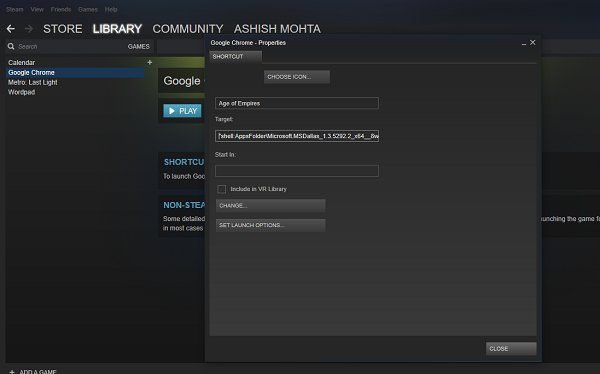
Starting with these techniques requires some familiarity with Windows file directories and administrative privileges. Ensure your game is installed from the Microsoft Store, then follow the steps to locate its package information. For example, if you’ve installed Age of Empires, you’ll need to find its specific app package data, which involves accessing system folders like C:Program FilesWindowsApps and editing manifest files. This process involves copying the Application ID and creating custom shortcuts in Steam, which trick the platform into launching the UWP game as if it were a standard desktop application.
One effective method involves editing the target paths in Steam to point directly to the game’s app package using a specific URI format, such as `shell:AppsFolderPACKAGE!APPID`. You can then add these custom shortcuts as non-Steam games, enabling you to launch store titles from your Steam library. Keep in mind, however, that this approach may limit some Steam features like VR support and in-game overlays, but it simplifies launching and managing your Microsoft Store titles from a familiar interface.
For those seeking a more streamlined experience, tools like UWPHook offer an easier way to add UWP apps to Steam with just a few clicks. This open-source application scans your installed store apps and generates shortcuts ready to be imported into Steam. After exporting your selected apps, restarting Steam will display these titles, allowing you to launch them directly from your library. This method also helps ensure your gameplay activity appears correctly on your Steam profile, which is useful for friends to see what you’re playing, even if the game is technically a non-Steam title.
Interesting:
- How to seamlessly integrate pc game pass and microsoft store titles into steam
- How to run a steam game as an administrator on windows 11 for seamless gaming
- How to quickly pin your steam games to the windows 10 start menu
- Seamlessly transfer steam games to a new pc without re downloading
- Using a single steam account to download games on multiple computers simultaneously
It’s important to note some limitations. For example, Steam’s overlay may not work reliably with these UWP games, and features like multiplayer or VR support might be restricted or require additional configuration. Additionally, there’s currently no cross-platform compatibility between games bought from the Microsoft Store and those purchased on Steam, meaning multiplayer or save data sharing is generally not supported.
To learn more about managing your game library and exploring other pathways to becoming a game developer, check out resources like pathways to becoming a game developer. If you want to understand how to enhance your game development skills or explore advanced techniques, consider exploring guides on moving your development office or other in-depth tutorials.
In summary, combining Microsoft Store games with Steam involves locating the app packages, modifying shortcut paths, or using dedicated tools like UWPHook. These methods provide a practical way to enjoy your store titles within Steam’s environment, although some limitations remain. Whether you prefer manual configuration or automated tools, integrating your favorite games into a single launcher enhances convenience and streamlines your gaming setup.
For more detailed procedures on optimizing your game library, visit scaling up how to move office in game dev story. Remember, the ability to manage all your titles from one platform can elevate your gaming experience, making it more organized and enjoyable.