Managing a growing Steam game library can become overwhelming without proper organization. While Steam automatically categorizes your games under a default label like Uncategorized, you can enhance your gaming experience by creating personalized collections. This allows you to easily locate and group your favorite titles, such as VR games or multiplayer favorites, making your library more manageable and tailored to your preferences.
Creating and managing collections on Steam is straightforward and offers a flexible way to organize your games. Whether you prefer static groups where you manually add titles or dynamic collections that update automatically based on filters, customizing your library can significantly improve navigation. For example, setting up a dedicated VR game category helps you quickly find titles like Half-Life Alyx or Beat Saber without scrolling through hundreds of entries.
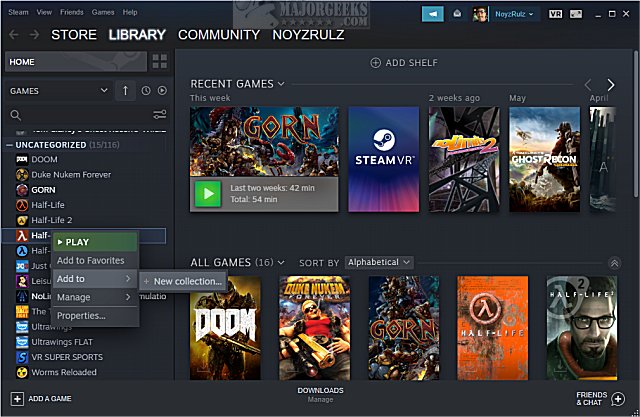
To start organizing, open Steam, then right-click on a game you want to include in a collection. For our example, we selected Half-Life Alyx. From the context menu, click on Add to, then choose New collection…. You will be prompted to assign a name to your new category—perhaps “VR Games” or “Multiplayer Favorites.” Once named, click Create Collection or Create Dynamic Collection.
Standard collections allow you to manually drag and drop games into the group, providing full control over your library. Alternatively, dynamic collections use filters—such as genre, playtime, or tags—to automatically include relevant titles, which is useful for maintaining an up-to-date, organized list without manual effort. In our case, we opted for a standard collection, dragging our VR titles into the new group. The process is quick and intuitive, helping you keep your library tidy.
Since Steam’s beta features, many users have overlooked the power of collections. They offer an efficient way to organize large game libraries, especially when juggling diverse genres or categories. Once set up, they make launching your favorite titles faster and browsing more enjoyable. For further customization, explore options like hiding gameplay activity or creating shortcuts to specific games on your desktop or taskbar.
If you’re interested in expanding your knowledge about game development, you might want to explore how to diversify your game genres in development projects—details can be found at research how to get new genres in game dev story. Additionally, understanding the process of turning concepts into popular mobile titles can be beneficial, which is covered at transforming concepts into chart topping mobile hits. For developers considering creating their own gaming apps, insights into mobile gaming app development are invaluable, including a detailed overview of mobile gaming app development costs.
In conclusion, organizing your Steam collection with custom collections not only improves your gaming experience but also keeps your library neat and accessible. Whether you manually group your favorite titles or use dynamic filters, this feature helps you enjoy your library more efficiently. Take advantage of Steam’s organizational tools to tailor your gaming environment to your preferences, making every gaming session more enjoyable.