


Integrating non-Steam games into your digital library can significantly streamline your gaming experience by consolidating all your titles in one accessible place. Whether you’re using a PC or the Steam Deck, adding non-Steam games is a straightforward process that allows you to organize and launch your favorite titles with ease. This guide walks you through the steps to incorporate your favorite non-Steam titles into your library, making it easier to access and manage your games seamlessly.
Quick Overview of the Process
- Launch Steam and navigate to the Games menu.
- Select Add a Non-Steam Game to My Library….
- Pick your game from the list or browse to its executable file.
- Confirm the addition by clicking Add Selected Programs.
How to Add Non-Steam Games on PC
Step 1: Launch Steam
Open your Steam client on your computer. Note that while this method makes your game appear in your library, Steam won’t handle updates or support for the game. It simply acts as a launcher shortcut for convenience.
Step 2: Access the Add Game Menu
Click on the Games menu at the top of the Steam window. Alternatively, you can find the Add a Game button in the bottom left corner of the interface.
Step 3: Select the Option to Add Non-Steam Games
From the dropdown, choose Add a Non-Steam Game to My Library…. If you initially clicked Add a Game, you’ll see an option labeled Add a Non-Steam Game.
Step 4: Choose Your Game
A list of installed programs will appear. If your game is listed, simply check the box next to it. If it isn’t, click Browse… and navigate to the game’s executable file (usually located in the Program Files or My Documents > My Games folder). This step may require some familiarity with your file directory.
Step 5: Finalize Addition
Click Add Selected Programs. The game will now appear in your Steam library, allowing you to launch it directly from there. For more details and advanced options, visit the official Steam support page.
How to Add Non-Steam Games on Steam Deck
Step 1: Switch to Desktop Mode
Press the Steam button, navigate to the Power menu, and select Switch to Desktop. This mode allows you to manage files and settings outside the gaming interface.
Step 2: Transfer or Download the Game
Ensure your game is installed on the device. You can transfer game files via an SD card or download directly from the internet.
Step 3: Open Steam in Desktop Mode
Launch the Steam client without switching back to gaming mode. This is necessary to add non-Steam titles correctly.
Step 4: Add the Game
Click Games at the top, then select Add a Non-Steam Game to My Library…. As with the PC process, select the game from the list or browse to its executable.
Step 5: Confirm and Return to Gaming Mode
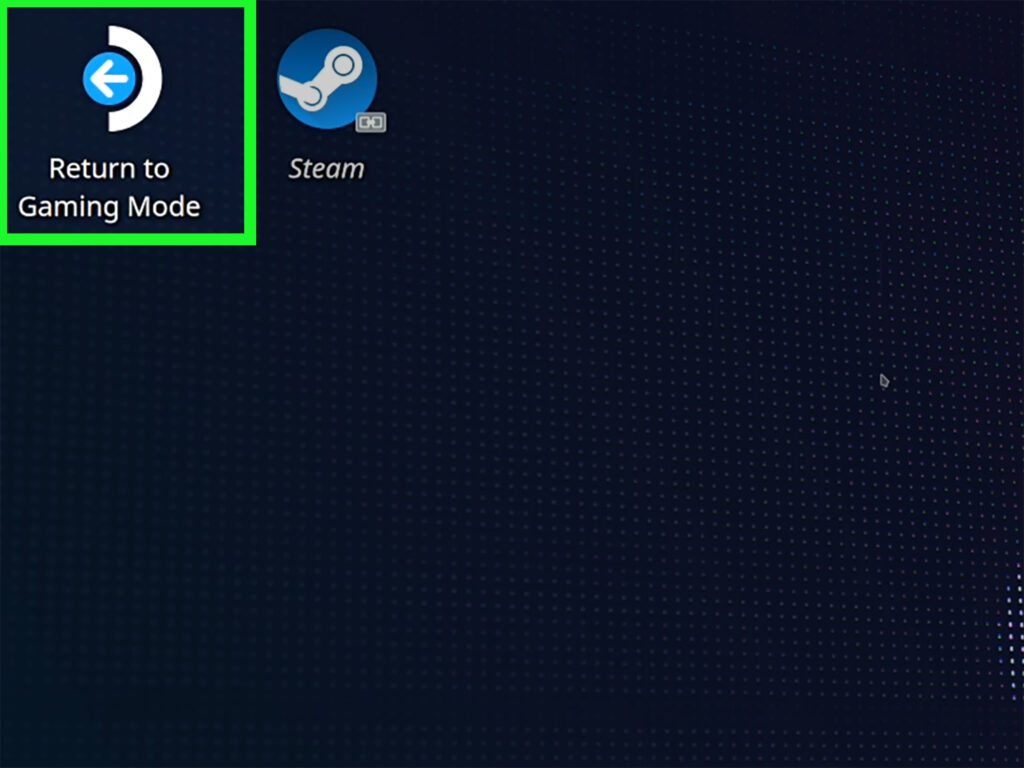
Click Add Selected Programs. The game will now be listed under the “Non-Steam” tab in your library. Return to gaming mode by selecting Exit to Gaming Mode from the desktop.
For more insights into managing your Steam library, explore this comprehensive guide.
FAQs About Adding Non-Steam Games
Can I activate non-Steam games on Steam?
Yes. If the game is available on Steam and you possess a valid Steam key, you can activate it by selecting Games > Activate a Product on Steam. This grants you access to the game within your library, even if purchased elsewhere. Remember, this process doesn’t automatically grant updates or support.
Can I update non-Steam titles through Steam?
No. When you add a non-Steam game, Steam only creates a shortcut; it doesn’t manage updates. You will need to update the game via its original launcher or manual installation.
Can non-Steam games verify ownership of your Steam account?
No. Non-Steam entries can’t serve as proof of ownership or verify your Steam account. To demonstrate ownership, use games purchased directly through Steam.
Looking to expand your game collection further? Consider strategies for acquiring more game types in your library here.
Interested in adding specialized hardware or software to your gaming setup? You might find this recruitment guide helpful for understanding how to bring more expertise into your projects.
Need to grant access or permissions for others to develop in your game? Find out how to adjust user roles with this permissions management guide.
Adding non-Steam games to your library enhances your gaming organization and access, making your experience smoother whether on PC or the Steam Deck. With a few simple steps, you can incorporate virtually any game into your digital collection for quick launch and management.