Diving into gaming on your Android TV opens up a world of entertainment, leveraging the extensive capabilities of the platform and its vast library of titles. Whether you’re transitioning from cloud gaming services like Stadia or exploring new titles through the Google Play Store, understanding how to access and optimize your gaming experience is essential. This guide walks you through the process of downloading, installing, and playing games on your Android TV, along with tips for using controllers and exploring alternative methods like sideloading apps.
Many Android TV devices support a variety of gaming options, but to get the most out of your experience, a compatible gamepad or controller is highly recommended. While some games can be played with your remote, a dedicated controller offers better precision and comfort, especially for more demanding titles. Keep in mind that support for controllers varies across different Android TV boxes; some may have limited compatibility. Before purchasing a new controller, check your device’s specifications to ensure compatibility. For additional tips on expanding your game library, see how to increase your game types in development.
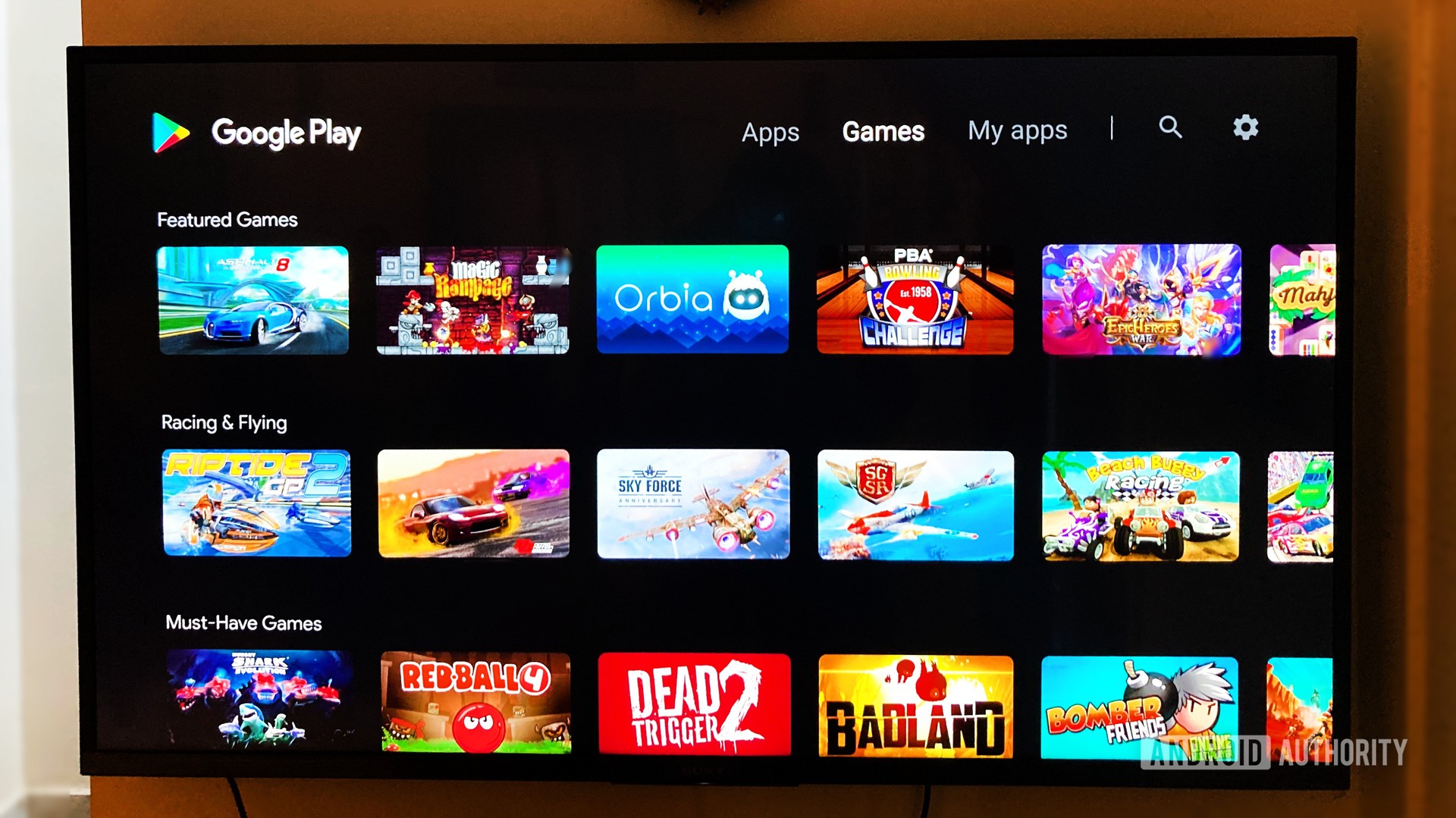
Once you’re ready to play, accessing games on Android TV is straightforward. Start by navigating to the home screen, then select the Apps section using your remote or D-pad. From there, open the Google Play Store, which offers a dedicated section for games. Browse or search for your preferred titles, and download them by selecting Install or purchasing if they are paid. Many games support controllers, so be sure to verify this in the game’s description before downloading. After installation, your games will appear in your apps library, within the My Apps section or the Google Play Games app. To purchase new games, ensure you have a valid payment method linked to your Google account.
Some titles offer a trial mode, allowing you to try games with a “Try Now” button before committing to a purchase. This feature is useful for testing game compatibility and gameplay style. For a smooth experience, always read the game description for controller support details. To discover top-rated games compatible with controllers, check out our curated list of the best Android TV games.
Interesting:
- The ultimate guide to running swf files on android devices
- Mastering dolphin emulator on android for seamless wii and gamecube gaming
- Lessons learned from publishing a renpy game on google play
- How to play classic n64 games on your android device
- Mastering gaming on your smart tv a comprehensive guide
In recent years, cloud gaming services like Google Stadia have expanded support for Android TV. Stadia is now available on devices such as Chromecast with Google TV, NVIDIA Shield TV, and select Smart TVs from brands like Hisense and Philips. You can install the Stadia app directly from the Google Play Store or sideload it onto unsupported devices. To set up Stadia, you might need a mouse, a compatible game controller, and the Stadia APK file, which can be sideloaded if your device isn’t officially supported. For more detailed instructions, visit how to make someone a developer in Roblox games for managing app permissions or explore the official Stadia support page.
If your Android TV device isn’t listed as officially supporting Stadia, you can attempt to enable experimental support, though this may involve troubleshooting. Alternatively, sideloading the Stadia phone app can also work, provided you set up the necessary peripherals. Remember, playing Stadia games on Android TV often requires a reliable internet connection and compatible input devices like a mouse and gamepad.
To enhance your Android TV gaming setup further, consider exploring official guides and community resources for customizing your device and optimizing performance. Whether you’re gaming locally or via cloud services, mastering these tools ensures a seamless experience. Check out our comprehensive Android TV setup guide for more tips and tricks to get the most out of your device.