


Playing your favorite Wii and GameCube titles on the go is now more accessible than ever thanks to Dolphin Emulator for Android. With just a few simple steps, you can set up the emulator, load your legally acquired game backups, and enjoy classic Nintendo games directly on your mobile device. This guide walks you through installing Dolphin, obtaining compatible game files, and optimizing the emulator for smooth gameplay, empowering you to relive nostalgic adventures anytime, anywhere.
—
Installing the Dolphin Emulator on Your Android Device
The first step to experiencing Nintendo’s beloved classics on your Android phone is installing the Dolphin Emulator app. It’s a straightforward process that begins with accessing the Google Play Store, which hosts the official version of the emulator.
- Open the Google Play Store. The icon resembles a multicolored triangular “play” symbol and is pre-installed on most Android devices.
- Search for “Dolphin Emulator.” Use the search bar at the top of the screen to locate the app.
- Select the official Dolphin Emulator app. Look for the icon featuring a dolphin and ensure it’s developed by “Dolphin Emulator.”
- Tap “Install.” The app will download and install automatically, making it ready for use after the process completes.
Once installed, you will be able to launch Dolphin from your app drawer and start configuring it for your gaming collection. But before loading games, you need to legally acquire or dump your Wii and GameCube titles onto your device.
—
Acquiring Wii and GameCube Games for Dolphin
To play Wii or GameCube games on Dolphin, you must have digital copies of your games in compatible formats. The most legitimate way is to back up your physical discs using homebrew tools on your Wii console.
- Install the Homebrew Channel on your Wii. If you haven’t already, this allows you to run custom applications like CleanRip. You can find comprehensive guides on how to do this on trusted sources such as the official Dolphin wiki.
- Download and set up CleanRip. This application enables you to create ISO images of your disc backups. Download it from here and transfer it to your SD card or USB drive.
- Insert your Wii or GameCube game disc into your console. Launch the Homebrew Channel and select CleanRip to start the ripping process.
- Choose your preferred chunk size. For larger games, selecting 2 GB or full dump options works best, especially if your storage device supports larger files.
- Transfer the ripped files to your Android device. Connect your Android via USB, then copy the ISO files onto your device’s storage. For ease of use, ensure your files are stored in a dedicated folder for easy access within Dolphin.
Alternatively, if you have legally obtained ROMs or ISO files, ensure they are in formats supported by Dolphin, such as WBFS, ISO, or GCP.
—
Interesting:
- Mastering spoiler text and images on discord for android users
- Mastering gaming on android tv from google stadia to the play store
- How to run a steam game as an administrator on windows 11 for seamless gaming
- Mastering resolution adjustments on the steam deck for optimal gaming experience
- How to set up greenlight on your steam deck for seamless gaming
Configuring Dolphin Emulator and Adding Your Games
With the emulator installed and your game files ready, it’s time to optimize Dolphin for the best performance and load your titles.
- Open Dolphin Emulator. Tap the app icon resembling a dolphin.
- Access the Settings menu. Tap the gear icon in the upper right corner.
- Configure advanced options. Tap Config, then select Advanced. Enable options like Override Emulated CPU Clock Speed to improve performance on certain devices.
- Adjust general settings. Under General, activate Dual Core and enable Usage Statistics Reporting to optimize speed and stability.
- Optimize graphics settings. Tap Graphics Settings and select options such as Show FPS to monitor performance, and Compile Shaders Before Starting to reduce lag during gameplay.
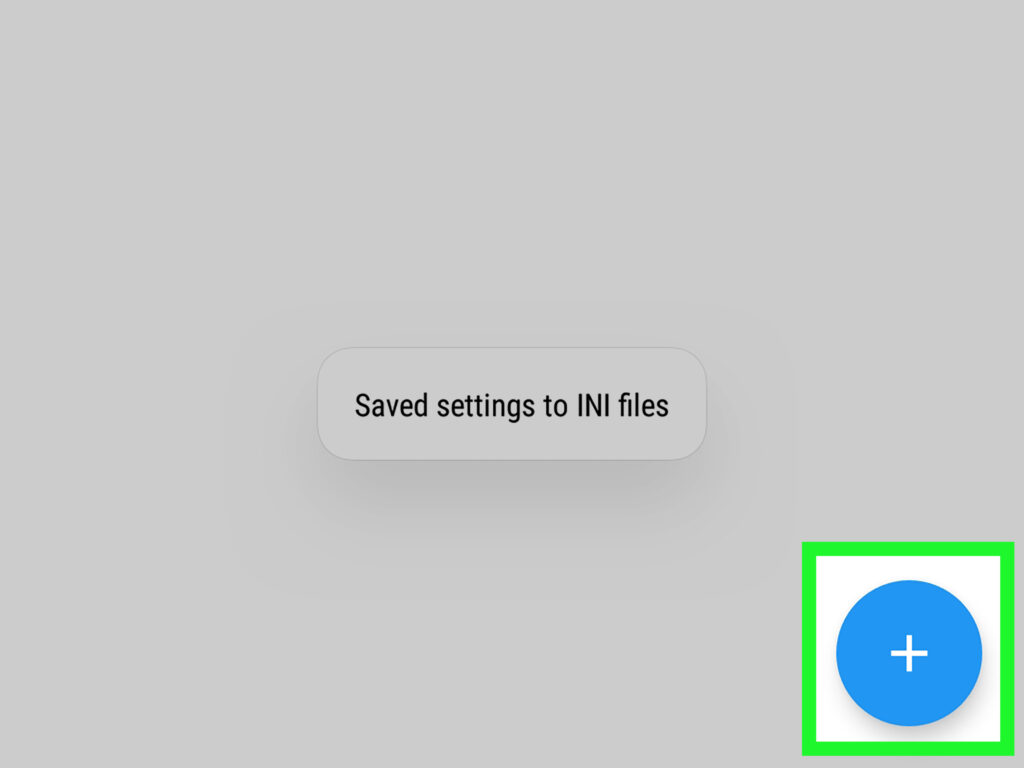
- Add your game files. From the main menu, tap the + icon in the lower right corner. Navigate to the folder containing your game ISO files and select the titles you wish to play.
For detailed customization, you can explore settings like resolution scaling and controller configurations, tailored to your device’s capabilities.
—
Enhancing Your Gaming Experience
To ensure smooth gameplay and better graphics, consider tweaking additional settings within Dolphin. For example, enabling Hardware Acceleration or adjusting Shader Cache options can significantly reduce lag. Additionally, connecting a compatible controller via Bluetooth or USB will provide a more authentic gaming experience.
If you’re interested in expanding your game library or exploring other genres, research how to get new genres in game development platforms like Game Dev Story for inspiration. Moreover, transforming your game ideas into successful mobile hits can be achieved by understanding the process of turning concepts into chart-topping mobile games.
—
Final Tips for Smooth Emulation on Android
- Keep your device’s software updated for optimal compatibility.
- Use a device with sufficient RAM and processing power to handle emulation demands.
- Regularly back up your game files to prevent data loss.
- Consult the Dolphin Wiki for advanced features and troubleshooting tips to enhance your setup further.
By following these steps, you can enjoy a vast library of Nintendo classics on your Android device with ease and confidence. Whether revisiting childhood favorites or discovering new titles, Dolphin Emulator on Android opens up a world of portable gaming possibilities.