


Running out of space on your primary drive can be frustrating, especially when dealing with large Steam game files. Fortunately, installing and managing Steam games on an external hard drive is straightforward and offers a flexible solution for gamers who want to expand their storage without sacrificing performance. This guide will walk you through the process of installing, moving, and maintaining Steam games on an external drive, ensuring you can enjoy your favorite titles without the hassle of limited internal storage.
When considering whether to install Steam games on an external drive, it is crucial to understand the storage requirements. Many modern games can expand significantly after download, with a game that initially downloads at just a few gigabytes potentially expanding to 8 or 10 GB once installed. Fortunately, with the availability of large-capacity external drives—ranging from 1TB to 4TB—most gamers can comfortably host sizable game libraries externally. If you’re using an SSD connected externally, the process remains similar, and performance can be nearly on par with internal drives if the connection is fast enough.
Installing a Steam Game Directly onto an External Drive
If you haven’t yet purchased or downloaded your game, installing it directly onto an external drive is an easy and risk-free process, especially since no progress is lost during setup. Follow these steps for a seamless installation:
- Connect your external drive to your computer, ensuring it is recognized and properly formatted.
- Launch the Steam client on your PC.
- Purchase or select the game you wish to install.
- Navigate to your Library and select the game.
- Click the Install button.
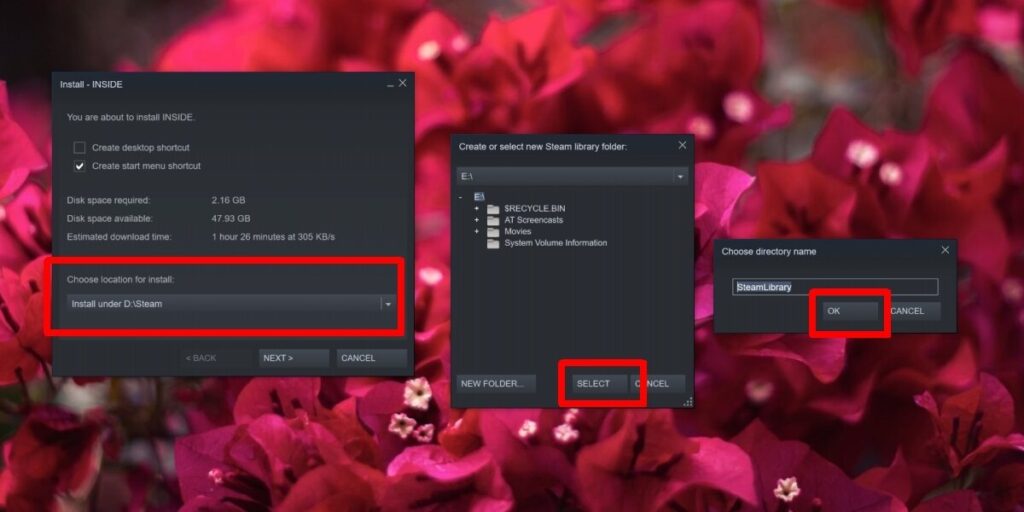
- When the installation window appears, look for the ‘Choose location for install’ dropdown menu.
- From the list, select your external drive as the destination.
- Choose the root directory of your external drive for installation, then click ‘Select’.
- Confirm the folder and click OK; avoid changing the default folder name Steam suggests.
- Proceed by clicking ‘Next’, and the game will begin downloading directly onto your external drive.
- Once the download completes, you can launch and play the game from your external storage.
This method ensures your game files are stored externally from the start, saving internal disk space and making setup straightforward.
Moving an Existing Steam Game to an External Drive
If you already have a game installed on your internal drive and want to move it to an external drive, Steam provides a simple way to do so without losing game progress. The process is generally safe and effective, but it’s always wise to back up your `SteamLibrary` folder beforehand for added security. Here’s how to perform the transfer:
- Connect your external drive and ensure it’s properly recognized.
- Open the Steam client.
- Go to your Library.
- Right-click on the game you wish to move and select Properties.
- Navigate to the Local Files tab.
- Click the ‘Move Install Folder’ button.
- From the dropdown menu, select the external drive or folder where you want the game to reside.
- Click ‘Move Folder’ to begin the transfer.
- Once completed, return to the game’s Properties window.
- To verify the integrity of the game files and ensure the move was successful, click ‘Verify Integrity of Game Files’.
- If all checks pass, your game is now fully functional from the external location, and you can continue playing without issues.
It’s important to note that even if you’ve already started playing the game, moving its files to an external drive does not affect your saved progress, which is stored separately.
Best Practices and Considerations
While installing or moving games to external drives offers great flexibility, it’s essential to follow some best practices to avoid data corruption or loss. Always disconnect external drives safely and securely, ensuring they are not removed abruptly during gameplay or file transfers. Sudden disconnections could lead to lost game progress or corrupted files.
For those interested in expanding their skills in managing game development or exploring career options in the gaming industry, understanding how to efficiently handle external storage is valuable. You can learn more about starting a career in remote game development by exploring resources like this guide.
Additionally, understanding how to optimize your game library can involve techniques like trophy hunting, which not only enhances your gaming experience but also helps in achieving in-game rewards. Find out more about strategies for winning major prizes in game development stories by visiting this resource.
Furthermore, recognizing the influence of Western game development styles can enrich your appreciation of game design trends. A deeper cultural analysis on this topic is available at this link.
Finally, for developers and hobbyists interested in cross-platform mobile solutions, understanding the advantages of such technologies can be beneficial. Learn more about these benefits at this site.
By following these guidelines, you can effectively manage your Steam library across multiple storage devices, ensuring a smooth gaming experience and efficient use of your hardware resources.