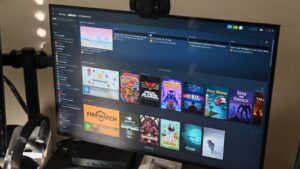
Playing your favorite Steam titles on an iPad without the need for a traditional PC opens up a world of gaming flexibility. Whether you’re commuting, traveling, or simply prefer the portability of your tablet, there are several ways to enjoy desktop-level gaming on your iPad. This guide explores three reliable methods, from dedicated streaming apps to remote desktop solutions and cloud gaming services. Each approach offers its own advantages, allowing you to choose the best fit for your gaming habits and technical setup.
If you’re interested in creating engaging experiences on small screens, understanding how to optimize streaming quality and interactivity is essential. For developers, exploring avenues like 3d mobile app development can help tailor your gaming projects for touch devices. Additionally, mastering remote access tools can give you the freedom to play anywhere, anytime. Whether you’re new to this or looking to refine your setup, this comprehensive overview aims to equip you with all the necessary knowledge to enjoy Steam games on your iPad without a PC.
—
Can I Play Steam on My iPad Without a Computer?
Many gamers ask whether it’s possible to enjoy Steam’s extensive library on an iPad without connecting to a PC. The answer is yes, but it requires using specialized tools and services to bridge the gap between your iPad and your gaming PC or cloud infrastructure. By leveraging these technologies, you can stream games directly to your tablet, effectively turning your iPad into a portable gaming console. This setup is particularly appealing for those who want instant access to their game library without lugging around a bulky computer.
—
How to Play Steam Games on iPad Without a PC: 3 Approaches
There are three main ways to access Steam titles on your iPad without a traditional PC. Each method varies in complexity, performance, and compatibility, so selecting the right one depends on your specific needs and gaming preferences.
Way 1: Use Steam Link
Steam Link is a dedicated app developed by Valve that allows you to stream games from your desktop Steam library to compatible devices, including iPads. It acts as an extension of your gaming PC, transmitting the game in real-time over your local network. This method is ideal for those who already have a gaming PC and want to leverage their existing setup.
Features:
- Supports high-definition game streaming with minimal latency.
- Compatible with various controllers, including Steam’s official controller.
- Customizable settings for resolution, bitrate, and network preferences to optimize performance.
How to Set Up Steam Link:
Part 1. Enable Steam Streaming on Your PC
First, you need to configure your PC to allow remote streaming. Open Steam, go to Settings > Remote Play, and enable Remote Play. You can also access advanced options like hardware encoding, which improve streaming quality. Setting a PIN can restrict access to authorized devices.
Part 2. Connect Your iPad to Steam
Download the Steam Link app from the App Store. Ensure your iPad and PC are connected to the same Wi-Fi network for optimal performance. Launch Steam Link on your iPad, follow the prompts to pair it with your PC, and enter the PIN displayed on your PC when prompted. Once connected, you can browse your Steam library and launch games directly on your iPad.
For detailed steps, including troubleshooting network issues, visit the official Steam support resources.
Way 2: Remote Desktop via AnyViewer
When cloud gaming services don’t support certain titles, remote desktop solutions like AnyViewer provide a flexible alternative. This approach requires a functioning PC but allows you to control it remotely from your iPad, effectively streaming your entire desktop environment.
Why Choose Remote Desktop?
With remote access software, you can launch any Steam game installed on your PC and control it as if you were sitting right in front of it. This method is especially useful for games that aren’t supported by cloud platforms or require specific hardware.
Key Features of AnyViewer:
- Supports precise, real-time control with 3D remote gaming mouse support.
- Maintains low latency for smooth gameplay.
- Preserves visual quality with true color modes.
- Supports multi-monitor setups for multitasking.
- Automatically adjusts display resolution based on network conditions.
Setup Guide:
Interesting:
Part 1. Install AnyViewer on Your PC
Download the software from the official site, create an account, and keep your PC powered on with the app running.
Part 2. Access Your PC from the iPad
Install AnyViewer on your iPad, log in with the same account, and connect to your PC. Once connected, launch Steam on your PC remotely and start your game. You’ll control everything via your tablet, making it a practical way to play Steam titles away from your desk.
For more advanced remote gaming needs, consider upgrading to a professional plan for higher quality and faster data transfer.
Way 3: Use Cloud Gaming Services
Cloud gaming platforms like NVIDIA GeForce NOW or Xbox Cloud Gaming provide a way to stream selected Steam titles directly to your iPad without a PC. These services run the game servers remotely, sending the gameplay video to your device.
Limitations:
Not all Steam games are compatible with these platforms, and a stable, high-speed internet connection is necessary for a smooth experience.
How to Use GeForce NOW:
1. Open Safari and navigate to play.geforcenow.com.
2. Sign up or log into your NVIDIA account.
3. Add the web app to your home screen for quick access.
4. Log into your Steam account within GeForce NOW.
5. Launch supported titles and enjoy streaming directly to your iPad.
This method offers a hassle-free experience, but it depends heavily on the game’s compatibility and network stability.
—
Wrapping Up
Accessing your Steam library on an iPad without a traditional PC is entirely feasible through various methods. Whether you prefer the low-latency performance of streaming via Steam Link, the versatility of remote desktop solutions like AnyViewer, or the convenience of cloud gaming services, each approach allows you to enjoy PC gaming on your tablet.
By mastering these techniques, you can turn your iPad into a portable gaming device, capable of running your favorite titles wherever you are. Embrace the flexibility of modern gaming technology and explore new ways to immerse yourself in the Steam universe without being tethered to your desk.