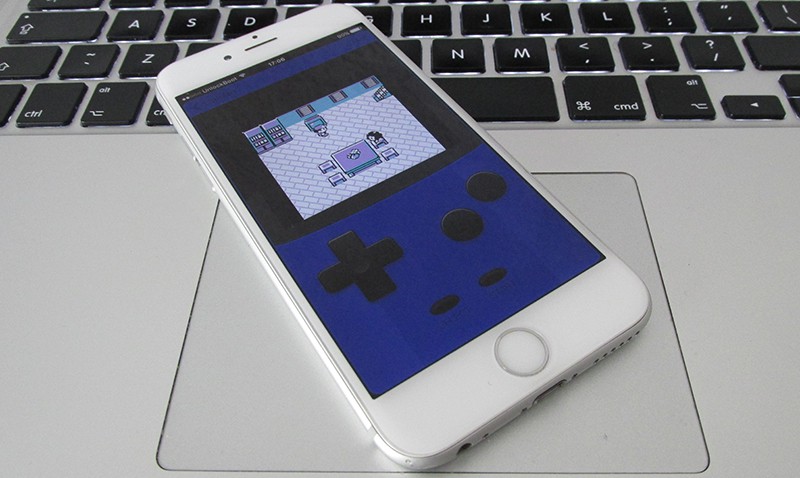
Playing classic GameBoy Color games on your iPhone can be a nostalgic experience, and the best part is that you can do it without jailbreaking your device. This guide walks you through a straightforward process to set up a GameBoy Color emulator on iOS 10 or later, enabling you to enjoy your favorite titles seamlessly. You won’t need to connect your phone to a PC, making this method both convenient and safe. If you’re interested in exploring the various routes to becoming a game developer or understanding how game companies operate, consider exploring pathways to becoming a game developer.
Setting Up the GameBoy Color Emulator on iOS Devices
The initial step involves preparing your device to host the emulator. This process is designed to be simple and quick, requiring only that you download the emulator from a trusted web source and install it on your Apple device. Before starting, ensure that you have installed Google Drive and ZipApp free from the App Store, as these apps are essential for managing the ROM files and extracting game data. If you haven’t already, download them directly from iTunes or the App Store. This setup allows for a smooth installation process without the need for jailbreaking, which can void warranties and pose security risks.
Steps to Install the GameBoy Color Emulator on Your iPhone
Step 1: Launch Safari and navigate to the emulator’s web page by visiting gameplaycolor.com/app.
Step 2: Tap the Share icon in Safari, then select “Add to Home Screen” to create a shortcut for quick access. You can customize the icon’s name to your preference for easy identification.
Step 3: Once added, the emulator icon will appear on your home screen. Tap it to open the app interface.
Step 4: When prompted, sign into your Google Account. This step is crucial because your game ROMs will be stored on Google Drive, which the emulator accesses to load your games.
Step 5: After signing in, you’ll be able to upload your GameBoy ROM files to your Google Drive. These files contain the games you want to play. Ensure your ROMs are stored in your Drive’s designated folder, typically labeled “ROMS.” The emulator will read these files and display available games on its interface. When you tap “Accept,” the emulator installs fully and displays the “Tap To Choose A Game” screen. However, at this stage, no games are available until you’ve uploaded ROMs.
To further expand your gaming library, learn about different ways to enhance your gaming setup by exploring how many offices are in the game dev story, which can give you insight into managing and expanding your virtual game studio.
How to Add ROMs to Your GameBoy Color Emulator
Adding games to your emulator’s library involves a few simple steps:
- Launch Safari and visit a reputable ROM hosting site. There are many legitimate sources online, but always prioritize official or well-reviewed sites to avoid malware.
- Search for your desired game using the site’s search feature or browse through available titles.
- Download the ROM file, typically with a .gb or .zip extension. Use ZipApp to decompress the file if necessary.
- Open ZipApp, locate your downloaded ROM, and extract it if it’s compressed.
- Tap “Open In” or “Share,” then select Google Drive to upload the ROM file. Ensure the file is saved in your Drive’s “ROMS” folder.
- Return to the emulator app, and your new game will appear in the available list. Tap to play and enjoy your classic favorites!
Remember, if you’re interested in developing your own games or understanding the behind-the-scenes of game creation, consider reviewing the various routes to becoming a game developer. For insights into how game companies manage their assets, you can explore the number of offices in game industry companies, which offers a glimpse into the scale of game development studios.
Enjoy reliving the classics on your iOS device without the risks associated with jailbreaking. With this method, you can safely access and play your favorite GameBoy Color titles anytime.