Emulating classic GameCube titles on iOS devices has become an exciting possibility for retro gaming enthusiasts in 2025. With the right setup, your iPhone can turn into a portable console capable of running beloved titles like Super Mario Sunshine, Resident Evil 4, or Super Smash Bros. Melee. This comprehensive guide explores how to get a GameCube emulator on your iPhone, the best options available, and the legal considerations involved. Whether you own a recent iPhone 14, iPhone 16, or an older model, you’ll discover methods to enjoy these nostalgic games seamlessly, even amid Apple’s strict app policies.
Understanding GameCube Emulation on iOS
Basics of GameCube Emulation
At its core, a GameCube emulator for iOS is software that mimics the original Nintendo hardware, enabling your device to run game files in formats like .iso, .gcm, or .rvz. The main goal is to replicate the console’s architecture—specifically, its PowerPC processor and ATI GPU—so that native GameCube games can be played on modern smartphones. DolphiniOS, a port of the popular open-source Dolphin Emulator, stands out as the leading choice for iOS, supporting both GameCube and Wii titles. The emulator translates the console’s code into instructions your iPhone’s ARM processor can execute, a process that typically relies on a Just-in-Time (JIT) compiler for performance. However, due to Apple’s restrictions on JIT-enabled apps, users often need to sideload DolphiniOS using tools like AltStore or Dolphin-ios GitHub. Despite these hurdles, DolphiniOS offers features such as HD graphics up to 1080p, save states, and Bluetooth controller support, making it a powerful solution for retro gaming.
- Supported formats include .iso, .gcm, .wbfs, and .rvz for GameCube, along with .wad and .wbfs for Wii titles.
- Compatible devices range from iPhone 6s (A9 processor) onwards, with optimal performance on newer models like iPhone 11 or iPhone 16 with 4GB+ RAM.
- The main emulator, DolphiniOS, must be sideloaded as it isn’t available directly through the App Store.
- Performance varies depending on device specifications and whether JIT is fully supported or enhanced via workarounds like AltJIT.
Why Emulate GameCube on iOS?
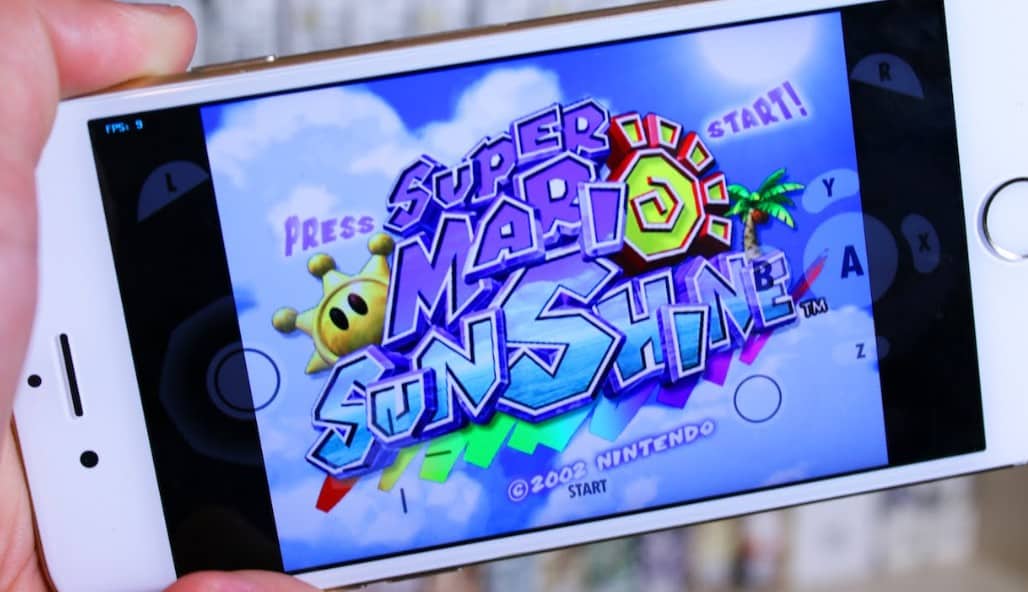
The appeal of emulating GameCube games on iOS lies in portability and enhanced visuals. Classic titles such as Resident Evil 4 or The Legend of Zelda: Wind Waker can be enjoyed anywhere, transforming your iPhone into a gaming portable. Modern iPhones, especially models like the iPhone 15 Pro and iPhone 16, deliver impressive performance—achieving 30-60 FPS on titles like Super Mario Sunshine. The benefits extend beyond convenience; emulators enable higher resolutions, anti-aliasing, and save states, allowing you to relive these games with improved visuals and gameplay flexibility.
Despite the challenges posed by Apple’s policies, which ban JIT compilation, sideloading solutions like DolphiniOS remain viable, especially with the aid of tools such as research how to get new genres in game dev story. For those interested in the process of turning game ideas into successful titles, understanding emulation provides insight into how classic games can be preserved and enjoyed on modern devices. Moreover, the rise of mobile gaming companies highlights the importance of transforming concepts into chart-topping mobile hits, making emulation a valuable skill for enthusiasts and developers alike.
Available GameCube Emulators for iOS
DolphiniOS: The Leading GameCube Emulator
DolphiniOS remains the top choice for iOS users seeking a reliable GameCube and Wii emulation experience. Based on the Dolphin Emulator project, DolphiniOS supports a broad range of titles with features like HD upscaling, cheat support, save states, and compatibility with various controllers. Due to Apple’s restrictions on JIT, DolphiniOS must be sideloaded through methods such as Dolphin-ios GitHub or via third-party app stores like SideStore. It supports iOS versions from 14 to 18, running best on newer iPhones with at least 4GB of RAM.
Performance-wise, DolphiniOS can emulate titles like Super Mario Galaxy at playable frame rates—up to 60 FPS on high-end hardware. Its active development community regularly updates the emulator, ensuring compatibility with the latest iOS versions. For a smooth experience, users often enable workarounds like AltJIT to optimize performance on devices without full JIT support, which is essential given Apple’s policies. The emulator handles various game formats, making it suitable for the majority of GameCube and Wii titles.
- Graphics can be upscaled to 1080p, with additional options for anti-aliasing and texture filtering.
- Supports controllers such as MFi, PS4, PS5, and Xbox, providing flexibility for gameplay.
- Save states allow players to pause and resume games instantly, a significant upgrade compared to original hardware.
- Regular updates from the Dolphin-ios GitHub repository ensure ongoing improvements and bug fixes.
GC4iOS and Other Alternatives
While DolphiniOS dominates the scene, older or less active projects like GC4iOS exist but are largely outdated. Developed before 2020, GC4iOS supports only iOS 10–14 and struggles with compatibility on newer devices, often crashing or supporting fewer titles. Its performance and stability are inferior to DolphiniOS, which boasts a broader game library and better optimization. Alternatives such as Delta or PS2-specific emulators (e.g., Play!) cater to other consoles and don’t support GameCube titles directly.
In comparing options, DolphiniOS offers the most consistent, feature-rich experience for download GameCube emulator needs. For example, a user switching from GC4iOS to DolphiniOS in 2025 reported a significant performance boost and smoother gameplay, especially with recent updates.
How to Install a GameCube Emulator on iOS
Method 1: Sideloading DolphiniOS with AltStore or SideStore
For most users, sideloading DolphiniOS via tools like AltStore or SideStore provides a straightforward way to install the emulator without jailbreaking. This method works on iOS 14 through 18 and involves no warranty risks. Here’s a typical process:
- Download and install AltStore (from altstore.io) or SideStore (sidestore.io) on a computer.
- Connect your iPhone to your PC or Mac, then use AltServer to install AltStore onto your device.
- Download the DolphiniOS IPA file from Dolphin-ios GitHub or trusted sources like OneJailbreak.
- Open AltStore, navigate to My Apps, and tap the “+” icon to select the Dolphin IPA.
- Sign in with your Apple ID (data remains local).
- Trust the developer certificate via Settings > General > VPN & Device Management.
- Import ROMs stored on your Files app or cloud services.
- Launch DolphiniOS and load your legally obtained game files.
This method is safe, supports Dolphin Emulator iOS 17 and 18, and doesn’t require jailbreaking. For enhanced performance, enabling research how to get new genres in game dev story can provide additional tools for game management on your device.
Method 2: Jailbreaking for Full JIT Support
Jailbreaking your iPhone unlocks full JIT capabilities, enabling Dolphin Emulator iOS to run at maximum speed. This approach is suitable for advanced users comfortable with jailbreak procedures, which vary depending on the iOS version and device model. Once jailbroken, you can install DolphiniOS directly via Cydia repositories, often providing better performance and stability. However, it voids your warranty and carries some security risks. A 2025 post on X highlights users achieving 60 FPS on titles like Super Smash Bros. Melee with jailbroken devices, but caution is advised. For detailed guides, consult trusted jailbreak resources and ensure you back up your data before proceeding.
Method 3: Building DolphiniOS from Source
For those with programming experience, compiling DolphiniOS from source offers the most control. Using Dolphin-ios GitHub, developers can customize and optimize the emulator for their specific hardware. This process requires a Mac with Xcode, dependencies like Cocoapods, and familiarity with command-line tools. While time-consuming, this method guarantees access to the latest features and experimental updates. A 2025 developer shared their build, incorporating custom shaders for enhanced graphics, illustrating the potential of source compilation.
Using DolphiniOS: Setup and Gameplay
Importing and Running Game ROMs
Once installed, the next step is to load your game files. Legally, ROMs must be ripped from physical discs you own, using tools like CleanRip or Friidump. Downloading ROMs from unofficial sources violates copyright law. After ripping your games, transfer the files (.iso, .gcm, .rvz) to your iPhone via AirDrop, cloud storage, or USB. Import them into DolphiniOS through the app’s interface, then select a game to start playing.
Configuring Controls and Settings
Optimizing controls is crucial for a satisfying experience. DolphiniOS supports touch controls, Bluetooth controllers, and MFi-compatible gamepads. You can customize button layouts, assign controls for the GameCube or Wii, and tweak graphics settings such as resolution and anti-aliasing. For best performance, disable unnecessary background apps, activate AltJIT if available, and adjust internal resolution based on your device. A player on iPhone 16 Pro configured DolphiniOS with a PS5 controller, achieving smooth gameplay at 60 FPS on Mario Kart: Double Dash.
Performance Optimization
Maximize performance by using high-end hardware—iPhone 11 or newer models are ideal. Lowering resolution, disabling certain visual effects, or enabling workarounds like AltJIT can significantly improve frame rates. Regularly update DolphiniOS from Dolphin-ios GitHub to benefit from performance patches. A user on Reddit demonstrated how tweaks in settings yielded stable 50-60 FPS in demanding titles like Resident Evil 4, making Dolphin emulator iOS a viable option in 2025.
Game Compatibility
While DolphiniOS supports most titles, some games may encounter glitches or performance issues. Consulting the Dolphin-ios GitHub compatibility list helps troubleshoot issues with games like Wind Waker or Metroid Prime. Adjusting graphics settings, enabling specific hacks, or using different ROM formats can improve compatibility. Many users report that with proper setup, the majority of popular titles run smoothly, providing a near-original experience.
Is Using a GameCube Emulator iOS Legal?
Legality of Emulators and ROMs
DolphiniOS itself is open-source and legal to use. The key legal concern revolves around ROMs: only rip games from discs you legally own. Downloading ROMs from unofficial sites infringes on copyright laws and is discouraged. A 2024 Forbes article emphasizes that users must own physical copies and rip them themselves to stay within legal boundaries. Using tools like research how to get new genres in game dev story illustrates how emulation supports game preservation and development.
Ethical Use of Emulators
Practicing ethical gaming means supporting developers by purchasing original copies or re-releases. Ripping your own discs and avoiding sharing ROMs online ensures respect for intellectual property rights. A 2025 X user highlighted how supporting official channels for game re-releases benefits the industry, ensuring that classic titles are preserved and accessible legitimately. Emulation should complement efforts to maintain gaming history ethically.
Other Ways to Play GameCube Games on iOS
Cloud Gaming and Streaming
If sideloading emulators seems daunting, cloud gaming offers an alternative. Services like Nvidia GeForce Now and Nintendo Switch Online stream select titles directly to your iPhone, bypassing the need for emulators. While GameCube titles are limited, some Wii games are available via cloud services, providing a legal and straightforward way to enjoy retro titles.
Other Emulators on iOS
For different platforms, emulators like Delta support Game Boy Advance, Nintendo DS, and SNES games on iOS. While these aren’t dedicated to GameCube, they complement your collection of classic titles. For PlayStation 2 fans, PS2 emulators like Play! or AetherSX2 are available, though they require sideloading similar to DolphiniOS. Combining these tools allows you to enjoy a broad range of retro games across multiple consoles on your iPhone.
Playing on Other Platforms
Platforms like Windows, Android, or Mac provide easier avenues for full JIT support and performance. Installing Dolphin on Windows or Android offers near-native speeds and broader compatibility. Transfer your ROMs to these platforms for a more straightforward setup if needed, but for portability, DolphiniOS remains the top choice in 2025.
FAQs About GameCube Emulator iOS
Q: Is there a GameCube emulator for iOS on the App Store?
A: No, due to Apple’s restrictions on JIT, Dolphin Emulator iOS isn’t available on the App Store. You must sideload it using tools like AltStore.
Q: Does DolphiniOS work on non-jailbroken devices?
A: Yes, with sideloading and workarounds like AltJIT, DolphiniOS can run on non-jailbroken devices, though performance may be limited.
Q: Why isn’t Dolphin on iOS?
A: Apple bans JIT-enabled apps for security reasons, preventing Dolphin from being officially listed on the App Store.
Q: How can I get Dolphin Emulator on iOS 18 without a computer?
A: Using wireless sideloading tools like SideStore allows installation without a PC after initial setup.
Q: Can I run Dolphin Emulator on an iPhone SE?
A: Yes, models like the 2nd or 3rd generation iPhone SE support DolphiniOS, but expect lower frame rates on older hardware.
Q: What’s the difference between DolphiniOS and other emulators?
A: DolphiniOS offers the best compatibility, features, and performance for GameCube and Wii titles, whereas alternatives are often outdated or limited.
Q: Is using ROMs legal?
A: Only if you rip them from games you own physically. Downloading ROMs from unauthorized sources is illegal.
Q: Can I emulate Wii games with DolphiniOS?
A: Yes, DolphiniOS supports many Wii titles, with around 60% compatibility, especially on newer iPhones with controllers.
—
Reliving classic GameCube adventures on your iPhone in 2025 is more accessible than ever. With methods to sideload DolphiniOS, optimize performance, and ensure legal use, you can enjoy a portable, high-quality gaming experience. Despite Apple’s restrictions, the community continues to innovate, making it possible to play beloved titles anytime, anywhere.