Waking up to find your favorite new game fully downloaded and ready to play is a thrill every gamer desires. However, ensuring that your games complete their downloads overnight can sometimes be a challenge. Factors like sleep mode settings, internet stability, and platform restrictions can interfere with automatic downloads. Fortunately, there are practical strategies to optimize your setup so that your games are ready when you wake up. Whether by adjusting your PC’s power settings, scheduling downloads, or leveraging alternative methods, you can make overnight gaming downloads seamless and hassle-free.
In this guide, we’ll explore the best ways to download PC games overnight, including platform-specific tips for Steam, Origin, uPlay, Epic, and itch.io. We’ll also provide troubleshooting advice to overcome common issues such as sleep mode interference and internet connection problems. Additionally, you’ll discover alternative solutions like using physical media or enlisting the help of friends to ensure your gaming library is always up to date. By implementing these tips, you can turn your PC into a dedicated overnight download machine, making sure your next gaming session starts exactly when you want it to.
Downloading Games Overnight by Platform
Downloading your favorite titles overnight depends heavily on the gaming platform you use. Each service offers different settings and limitations, so understanding how to optimize each one is essential. Let’s examine the most popular PC gaming storefronts and how you can configure them to download in your sleep.
Steam
Steam is the dominant platform for PC gaming, boasting the largest user base worldwide. Interestingly, Steam doesn’t provide a dedicated setting explicitly for overnight downloads. This means you can queue up your games and Steam will process them in order without needing special configuration. The key is to prepare your downloads before sleep and let Steam handle the rest.
However, a crucial consideration is that Steam will halt downloads if your PC enters sleep mode. To ensure uninterrupted downloads, you need to disable sleep mode on your computer. You can do this by adjusting your power settings, which is especially important if you want your downloads to continue seamlessly through the night.
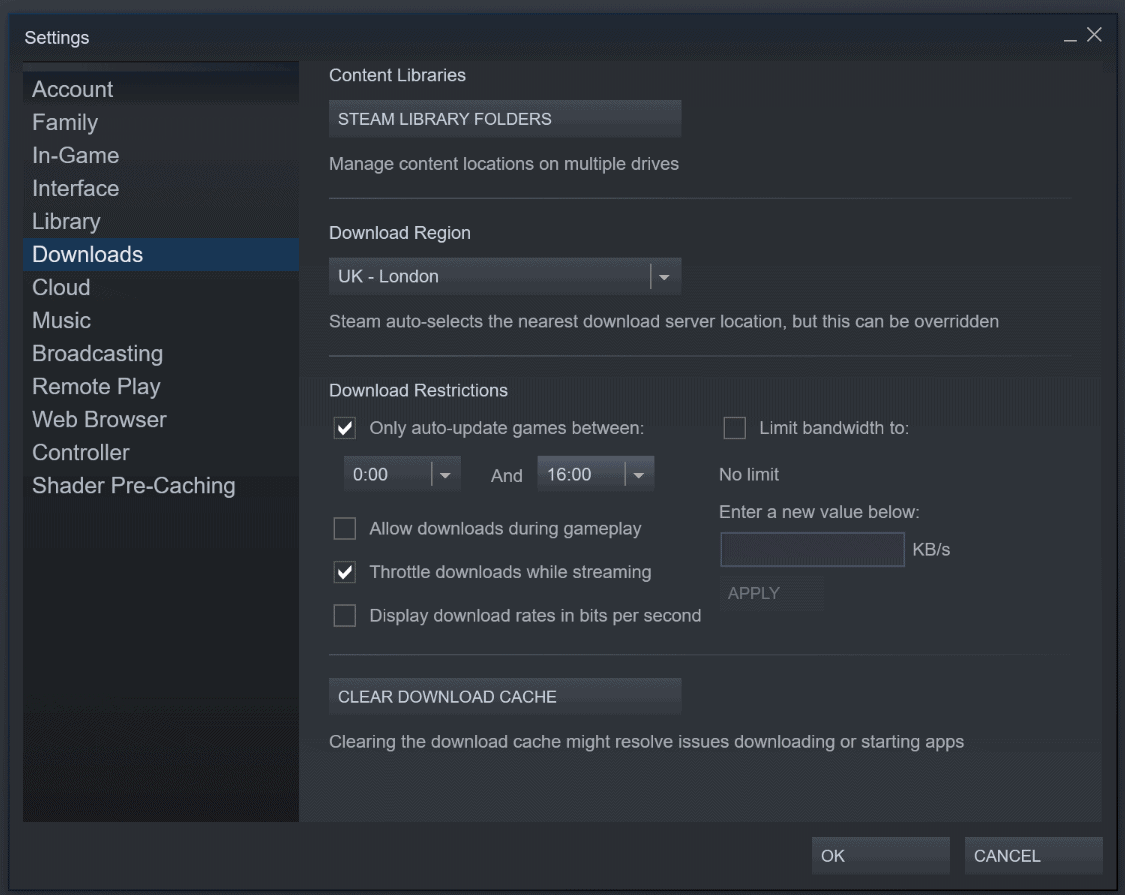
Additionally, Steam offers a built-in feature called “Download Restrictions” that enables you to set specific time windows during which downloads are allowed. This is perfect if you want to schedule large downloads or updates during off-hours without manually starting them each time.
Here’s how to set a download window in Steam:
- Open the Steam application.
- Click on the “Steam” menu in the top-left corner.
- Select “Settings.”
- Navigate to the “Downloads” tab.
- Under “Download Restrictions,” set your preferred time window for downloads.
Using these options, you can customize when Steam downloads your games, ensuring they’re ready after your sleep cycle ends.
Origin
EA’s Origin platform shares similar limitations with Steam. It doesn’t have a native feature to prevent sleep mode, meaning downloads will stop once your PC sleeps. Like Steam, Origin allows you to pause and resume downloads, so if your PC does go to sleep mid-download, you can simply restart the download after waking your PC.
To maximize overnight downloads with Origin, you need to disable sleep mode entirely. This guarantees that downloads continue uninterrupted regardless of your activity. Keep in mind that for laptops, you can also modify what happens when closing the lid, setting it to “do nothing” to keep your system awake during downloads.
uPlay
Ubisoft’s uPlay offers fewer options for controlling download behavior. The main solution is to manually disable sleep mode on your PC, as uPlay doesn’t include scheduling features or download timers. Ensuring your PC stays awake is the best way to guarantee that your game downloads proceed smoothly overnight.
Epic Games Store
Epic’s platform presents a more limited approach, lacking built-in scheduling or download management features. Like other storefronts, it relies on your PC remaining awake to continue downloads. Therefore, the recommended method is to disable sleep mode before you go to bed. This simple step prevents interruptions and allows Epic to download your games seamlessly.
itch.io
The itch.io launcher is primarily used for indie games, which are generally smaller in size—often only a few gigabytes. As a result, download issues are less common on this platform. Nevertheless, you can apply the same principles: disable sleep mode and ensure a stable internet connection for successful overnight downloads. When dealing with larger or multiple files, consider clever workarounds to streamline the process.
Overcoming Common Downloading Obstacles
Even with the right settings, various issues can prevent successful overnight downloads. Here are four reliable solutions to ensure your gaming downloads stay on track.
1. Prevent Your PC from Sleeping
The most straightforward method is to keep your computer awake throughout the night. Disabling sleep mode is essential, as most download interruptions occur when the system enters standby.
To turn off sleep mode on Windows:
- Open the Settings menu.
- Select “System.”
- Click “Power & Sleep.”
- Under “Sleep,” choose “Never” or set a long duration.
For laptops, you can also adjust what happens when closing the lid:
- Open Power Options.
- Click “Change plan settings” next to your active plan.
- Select “Change advanced power settings.”
- Find the “Lid close action” setting and set it to “Do nothing.”
This setup ensures your laptop remains active even when the lid is closed, preventing unintended sleep during downloads.
2. Address Internet Connection Challenges
A stable, fast internet connection is vital for overnight downloads. If your connection is unreliable, downloads may pause or fail altogether. Use a wired Ethernet connection instead of Wi-Fi whenever possible, as it provides a consistent and stable link. For desktops, connecting directly to your router via Ethernet minimizes disruptions.
Be aware of potential ISP restrictions, such as data caps or throttling during peak hours. If your internet plan limits large downloads or slows down during certain times, consider upgrading your service or scheduling downloads during off-peak periods. Some ISPs offer unlimited data plans that are better suited for large game downloads.
3. Use Physical Media
When internet limitations or system restrictions prevent smooth downloads, physical copies are a reliable alternative. Many games are still available on physical discs or USB drives. Pre-ordering physical copies can help you receive the game ahead of launch, sometimes arriving days early. This method ensures you have the game ready for play without relying on internet speeds—especially useful if your connection is inconsistent or capped.
Keep in mind, you’ll need a functioning optical drive to install games from discs, and larger titles may require multiple discs or additional storage.
4. Enlist Help from Friends or Use External Storage
If your internet connection is insufficient or you prefer to avoid system tweaks, consider downloading the game at a friend’s house with a better connection. Transferring the game files via USB drive or external HDD is an effective workaround.
By copying the downloaded files onto a portable storage device, you can then transfer and install the game on your PC at home. This approach is particularly useful for large titles and ensures you can start gaming as soon as possible without waiting for slow downloads.
—
Properly configuring your PC and understanding the limitations of various platforms can dramatically improve your overnight download success rate. For more advanced techniques, some developers explore creating immersive experiences for small screens, which involves different optimization strategies. If you’re interested in expanding your gaming setup, exploring 3d mobile app development can offer insights into enhancing your gaming ecosystem.
By applying these methods, your PC can work tirelessly in the background, ensuring your games are ready when you wake up—making your gaming routine more efficient and enjoyable. Whether through adjusting power settings, leveraging physical media, or coordinating with friends, these tips help you stay ahead in the gaming world.