Discovering how to efficiently remove unwanted mobile games from your Android device can help optimize performance and free up storage space. Whether you want to delete downloaded apps, disable pre-installed ones, or even fully remove system applications, understanding the different approaches is essential. This guide provides clear, step-by-step instructions to help you manage your apps effectively, with insights into advanced options like rooting your device for complete removal.
Uninstalling Downloaded Applications
The simplest way to get rid of games you’ve installed from the Google Play Store is through your device’s app management settings. This method is suitable for most users and doesn’t require any technical expertise.
Begin by opening the Settings app on your Android device. From there, locate and tap on Apps or Application Manager, depending on your device’s interface. Accessing this section may vary; some devices allow you to swipe from right to left to navigate between tabs, or you might need to select a dropdown menu at the top of the screen to find the All Apps list.
Once in the app list, scroll through to find the specific game you wish to uninstall. Tap on the app name to open its details page, then select the Uninstall button. Confirm your choice by tapping OK when prompted. If the Uninstall option isn’t available, it might be a pre-installed app, which leads us to the next method.
For more in-depth insights into app removal, especially for apps with complex dependencies, exploring authoritative sources like how to identify Western game development influence can provide valuable context on game design origins and modding possibilities.
Disabling System and Carrier-Preloaded Apps
Many Android devices come with pre-installed applications from the manufacturer or carrier, including some games that cannot be uninstalled through standard procedures. Instead of removing these apps permanently, you can disable them to prevent them from running and consuming resources.
Begin by opening Settings and selecting Apps or Application Manager. Access the All apps list by swiping or choosing the appropriate tab. Find the app you want to disable, then tap on it. If available, tap Uninstall updates to revert the app to its factory version, which can sometimes enable the disable option.
Interesting:
Next, press Disable or Turn off. Confirm your decision by tapping Yes. Disabling an app will hide it from your app drawer and prevent it from using system resources, effectively removing it from your daily usage without affecting other applications. This is particularly useful for games that came preloaded on your device. For a broader understanding of managing app environments, exploring cross-platform solutions can be beneficial—details about the benefits of such approaches are available here.
Completely Removing System Apps with Root Access
For advanced users seeking to fully delete system applications, rooting your Android device is necessary. Rooting grants administrative privileges, allowing you to remove pre-installed apps, including games, that are otherwise protected from deletion. However, this process can void your warranty and pose risks if not performed correctly.
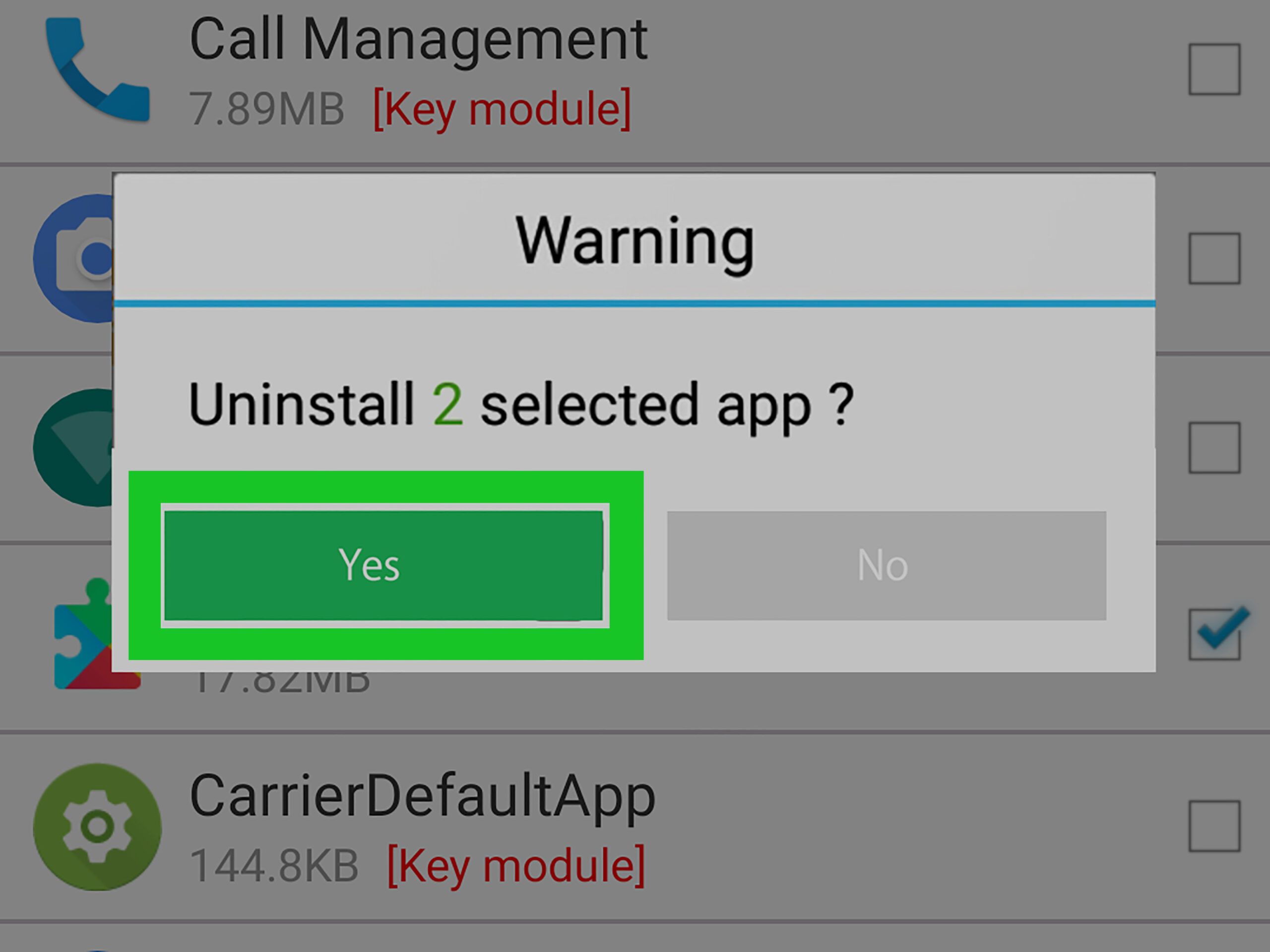
To proceed, root your device following detailed instructions specific to your model. Once rooted, download an app like System App Remover (ROOT) from the Google Play Store. Launch the app and grant root permissions when prompted. Carefully select the system apps or games you wish to eliminate—be cautious to avoid removing critical system components that could impair device functionality.
Tap Uninstall and confirm the removal. Remember, removing essential apps may cause system instability, so always double-check the apps you select. If you’re interested in understanding the basics of game development to create your own applications, resources such as game development fundamentals and how to begin your first project can be invaluable.
—
By choosing the appropriate method based on your device’s configuration and your technical comfort level, you can effectively manage and remove unwanted mobile games, optimizing your Android experience. Whether uninstalling downloaded apps, disabling preloaded ones, or fully removing system applications, understanding these strategies ensures your device remains clean and efficient.