


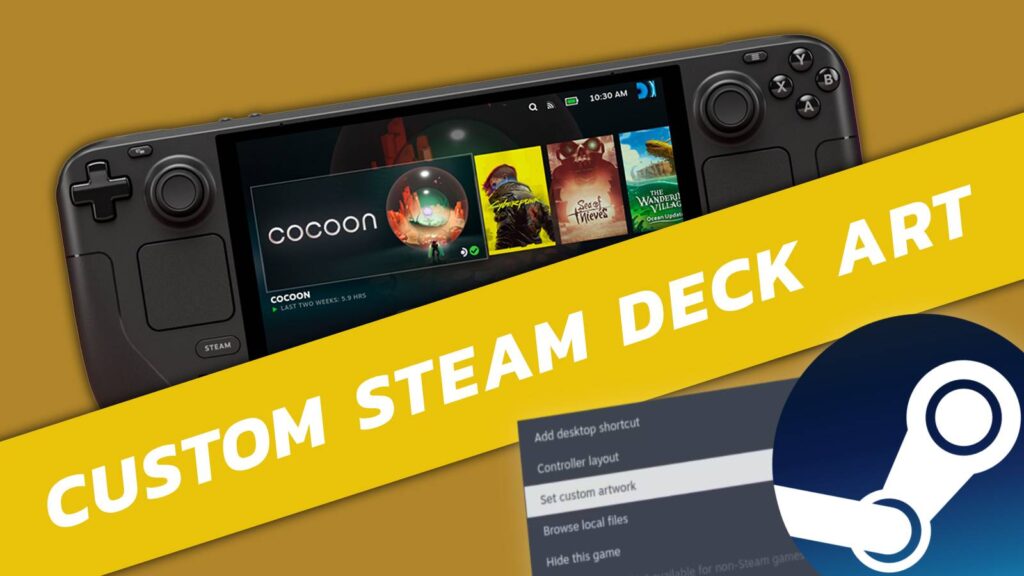
Enhancing the visual consistency of your game library on the Steam Deck can significantly improve your user experience. While native Steam titles automatically come with artwork and icons, many added non-Steam games—such as those from other platforms or emulators—appear as plain gray boxes with simple text labels. Fortunately, it is possible to customize these visuals, giving your library a more polished and personalized appearance. This guide walks you through the process of adding custom artwork, icons, and banners to non-Steam games on your Steam Deck, making your entire collection visually appealing and easier to navigate.
How to assign custom artwork to non-Steam Deck games
To begin customizing your non-Steam games, you need to switch your Steam Deck into desktop mode. This mode allows full access to the desktop interface where you can manage game assets with greater flexibility.
- First, switch to desktop mode by holding the power button and selecting “Switch to Desktop.”
- Launch the Steam application from the desktop environment.
- Navigate to your game library.
- Locate the non-Steam game you want to customize.
- Right-click on the game entry.
- Select ‘Manage’ from the context menu.
- Click on ‘Set Custom Artwork’.
In this menu, you can upload images stored locally on your Steam Deck. You can create your own custom images or download artwork from community sites such as SteamGridDB, which hosts a vast collection of user-generated icons, splash screens, and banners. Although SteamGridDB is not an official Valve platform, it offers a wide array of artwork suited for various games and platforms, enhancing your library’s visual quality.
Once uploaded, the custom art will be displayed whenever browsing your non-Steam game entries, giving your library a uniform and personalized aesthetic.
How to set custom icons and banners for non-Steam Deck games
Beyond thumbnail images, you can also customize the icons and banner artwork associated with your games, further refining their appearance.
- Remain in desktop mode.
- Open Steam.
- Access your game library.
- Select the non-Steam game you want to modify.
- Right-click on the game and hover over the banner image.
- Choose ‘Set Custom Background’ or ‘Set Custom Logo’ from the options.
The ‘Set Custom Background’ option allows you to replace the splash-screen image of the game, making it stand out more prominently. Meanwhile, ‘Set Custom Logo’ modifies the small icon that appears next to the game name in your library, giving your collection a more unified look.
After selecting your preferred images, they will be applied immediately, ensuring your non-Steam titles match the style of your native Steam games. For more comprehensive customization, consider exploring guides on scaling up your game library or strategies for achieving higher success in game development competitions.
Looking to expand your gaming options? You might find it useful to learn about winning big in game development contests or how to move your office setup efficiently in virtual environments.
With these steps, your Steam Deck library becomes a visually cohesive collection, whether you’re adding classic titles, indie gems, or games from external sources. Custom artwork not only enhances aesthetics but also simplifies navigation, making your gaming experience more enjoyable and organized.