Getting a Steam controller up and running on your PC can seem daunting, especially with the discontinuation of official support. However, with the right steps, you can connect, update, and personalize your controller for seamless gaming. This guide walks you through each phase, from firmware updates to pairing options, ensuring you maximize your controller’s capabilities and enjoy a tailored gaming experience.
—
Introduction
The Steam controller was designed to bridge the gap between keyboard-and-mouse and traditional gamepad players, featuring innovative touchpads and analog sticks. Despite being discontinued in 2019, it remains a favorite collector’s item and a versatile device for PC gaming. Setting it up involves updating firmware, pairing via wireless dongle or Bluetooth, and customizing button mappings. Whether you’re a seasoned gamer or new to controllers, this step-by-step process will help you get your Steam controller functional and optimized.
—
How to Set Up a Steam Controller
- Download the latest firmware update package and extract it to your PC.
- Connect the controller using a micro-USB cable and run the included update script.
- Launch Steam, navigate to Settings > Controller, and prepare for pairing.
- Use the wireless dongle or Bluetooth to connect the controller to your PC.
- Customize button functions, layout, and preferences through Steam’s controller configuration.
—
Steps
Part 1: Updating the Controller Firmware
Updating your Steam controller’s firmware is essential, especially since official updates are no longer provided via Steam. You need to manually download the update files to enable features like Bluetooth connectivity.
1. Download the update file. Because the controller’s firmware update process is no longer integrated into Steam, you must download the update package directly from an official source. This update activates Bluetooth mode but will reset any previous wireless pairings with the USB wireless dongle, requiring re-pairing afterward. Note that this process is only compatible with Windows PCs, as the update relies on a batch script that doesn’t run on Mac or Linux systems. For detailed instructions and the download link, visit official Steam support.
2. Extract the ZIP file. Use File Explorer to unzip the downloaded package by right-clicking the file and selecting “Extract All.” This prepares the update files for execution.
3. Close Steam. To prevent conflicts, exit Steam completely before proceeding with the firmware update process.
4. Connect the controller to your PC. Use the included micro-USB cable or any compatible micro-USB cable to connect the controller to your computer.
5. Run “ble.bat”. Locate the extracted folder and double-click the “ble.bat” file. This script updates the Bluetooth firmware and the controller firmware itself. You might see a Windows Defender warning; if so, click “More info” and select “Run anyway” to proceed.
—
Part 2: Pairing the Controller Using the Wireless Dongle
Once firmware updates are complete, you can connect your controller via the wireless dongle for optimal performance.
1. Insert the wireless dongle. Plug the USB dongle into any free port on your PC.
2. Open Steam and access controller settings. From the top menu, click Steam > Settings > Controller.
3. Start pairing. Click Start next to “Pair a Steam Controller.” The system will begin searching for nearby controllers.
4. Press the Steam button. Located in the center with the Steam logo, pressing this button on the controller should initiate pairing with the dongle. You can connect up to four controllers on a single dongle.
—
Part 3: Connecting via Bluetooth
Alternatively, you can connect your Steam controller directly through Bluetooth, which provides flexibility and wireless convenience.
Interesting:
1. Open the Bluetooth menu. On Windows, click the Start menu, type “Bluetooth,” and select Bluetooth and other device settings.
2. Add a new device. Click Add Bluetooth or other device, then choose Bluetooth.
3. Activate Bluetooth LE mode on the controller. Simultaneously press the Steam button + B to enable Bluetooth Low Energy mode. If this doesn’t work, try Steam button + Y to put it into pairing mode.
4. Select the controller. When the device appears in the list, click to pair. You are now connected wirelessly via Bluetooth. For lower latency and a more stable connection, Steam recommends using the wireless dongle instead of Bluetooth.
—
Part 4: Customizing Key Functions Manually
Personalizing your controller layout enhances gaming comfort and efficiency.
1. Open Steam and select a game. Launch Steam, then navigate to your game library and click on your chosen game.
2. Access controller configuration. On the game’s page, click View Controller Settings.
3. Edit layout. Click Edit Layout to open the remapping interface.
4. Configure touchpads and buttons. Select each control (left/right touchpad, joystick, face buttons, bumpers, triggers) to assign new functions. For example, you can remap the touchpads to serve as D-pads or mouse controls, making your gameplay more intuitive.
5. Adjust dead zones and haptic feedback. Fine-tune the responsiveness of touch inputs and customize vibration intensity for a more immersive experience.
6. Assign keyboard keys. For advanced customization, link controller buttons to specific keyboard keys, enabling complex command mappings. For detailed instructions on creating complex control schemes, see game development basics.
—
Part 5: Exporting and Importing Controller Layouts
Sharing your custom configurations or transferring them between devices is straightforward.
1. Export your layout. In the controller settings, click Export Layout, assign a name and description, and save the configuration file for future use.
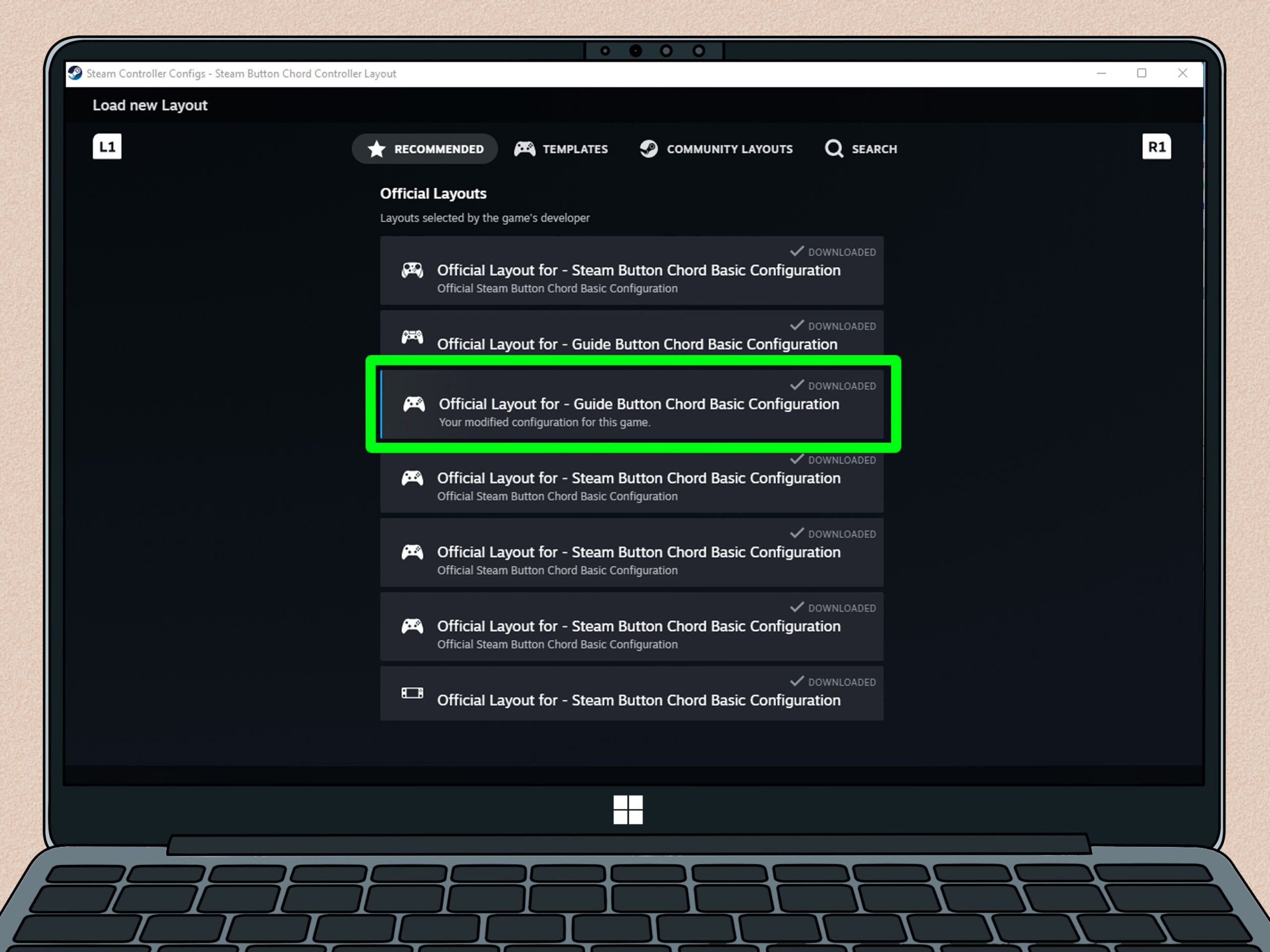
2. Import a layout. To load a pre-made configuration, open Steam, select your game, go to View Controller Settings, click the layout dropdown, and choose Import Layout. Select the layout file you previously saved or download shared templates from the community.
—
Conclusion
While setting up a Steam controller on PC requires some manual steps, especially for firmware updates and Bluetooth pairing, the process ultimately grants you a highly customizable gaming experience. Properly configuring your controller allows for tailored controls, enhancing gameplay and comfort. For more detailed guidance, consult the official Steam support page or explore community-created configurations to expand your control options further.