


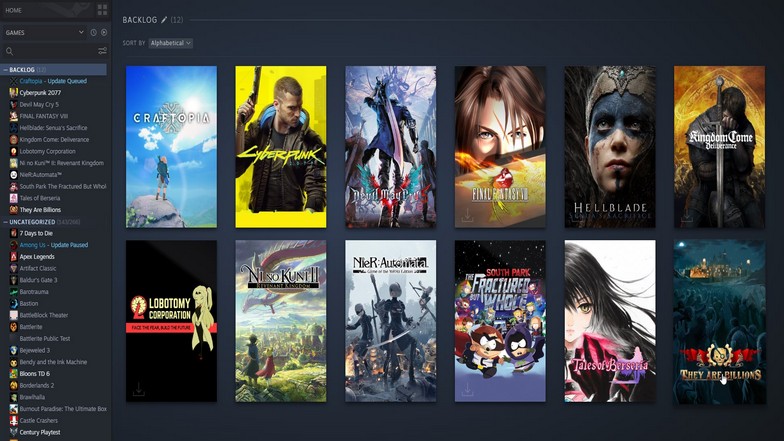
Enhancing your gaming experience often involves optimizing how your computer utilizes its resources. One effective way to improve the smoothness and stability of Steam games is by allocating more RAM to them. Properly managing your PC’s memory can lead to higher frame rates, fewer crashes, and overall better performance. This guide provides comprehensive steps to help you allocate additional RAM to your Steam games, ensuring you get the most out of your hardware.
Allocating More RAM Through the Task Manager
The first step in increasing RAM allocation involves understanding your system’s available memory. Your PC can only assign as much RAM as is marked as “usable” in your system settings. Sometimes, only a portion of your total RAM is accessible, which can cause performance bottlenecks.
If you find that only half of your installed memory is usable, it may be due to running a 32-bit version of Windows, which limits your maximum addressable memory to 4GB. Upgrading to a 64-bit operating system can resolve this issue, allowing full utilization of your RAM. Once your system recognizes all your memory, you can proceed to adjust priorities for specific applications.
Open the Task Manager and navigate to the “Details” tab. Locate the process for your game, right-click it, and select “Set priority.” You will see options such as low, below normal, normal, above normal, high, and realtime. Setting the priority to above normal or high can allocate more CPU and memory resources to the game, potentially enhancing its performance.
However, it’s important to be cautious. Increasing the process priority can cause instability if your system is not accustomed to managing multiple high-resource applications simultaneously. Be mindful of your current memory consumption, especially if you have many background applications or browser tabs open. Tabs with web-heavy sites or streaming services can consume significant RAM, which might lead to crashes if your system runs out of available memory.
Additionally, if your CPU is overworked, increasing priority levels can help balance the load, but only if you understand your system’s capabilities. Proper management of process priorities can improve gaming performance, but misuse may lead to system instability.
Using Steam Launch Options for Better Performance
Adjusting launch options can sometimes optimize how a game uses memory and other resources during startup. This method is especially useful for games with known performance issues or high memory demands. To do this, right-click the game in your Steam library, select “Properties,” then under the “General” tab, find the “Launch Options” box.
By entering specific commands, you can influence how the game initializes. For example, setting refresh rates or limiting memory usage can help games load more efficiently. A common tweak for demanding titles like PUBG involves commands such as:
“`
-refresh 144 -maxMem=15000
“`
This command sets the game to run at 144Hz and limits its memory usage to 15GB. These tweaks are often found through community forums or official game support pages. Experimenting with launch options can yield noticeable improvements, especially on systems with limited resources. For detailed guidance, consider exploring resources on game-specific optimizations or performing a detailed analysis of game influence by Western developers.
Ways to Free Up Additional RAM for Gaming
Disabling Antivirus Software
Antivirus programs are essential for security but often run in the background, consuming a considerable amount of memory. When gaming, this background activity can hinder performance. Temporarily disabling your antivirus before starting a game can free up resources, but always remember to re-enable it afterward to keep your system protected.
Closing Streaming and Background Services
Streaming videos or running multiple browser tabs can significantly drain your RAM. Each open tab, especially those with web-based games or high-traffic streaming sites, can use between 150-300MB of memory. Even paused tabs contribute to overall usage. To optimize your system, close unnecessary tabs and disable streaming services during gameplay. If you’re using multiple monitors, monitor your resource usage carefully, as it can be higher with additional screens.
Adjusting Graphics Settings
While lowering graphics settings doesn’t directly reduce RAM usage, it can lessen the overall load on your system. Disabling or reducing features like view distance, terrain detail, and ray tracing can decrease the amount of data your system needs to process, indirectly easing RAM pressure. However, if your game has poor optimization or outdated drivers, reducing graphics may not significantly improve performance. Keeping your drivers up-to-date ensures better compatibility and stability.
Conclusion
By following these steps, you can effectively allocate more RAM to your Steam games, resulting in smoother gameplay and fewer interruptions. Proper management of your PC’s memory not only enhances gaming but can also prolong your hardware’s lifespan by reducing unnecessary strain. Remember, some games and applications may require specific adjustments or community-driven tweaks for optimal performance. Exploring additional resources like game development start guides can help you understand how to optimize your system further for gaming.
Maximizing your system’s potential through strategic RAM allocation and resource management is a key step toward achieving a superior gaming experience.